Quotes
Create quotes to share with customers with the click of a button. Watch how to here
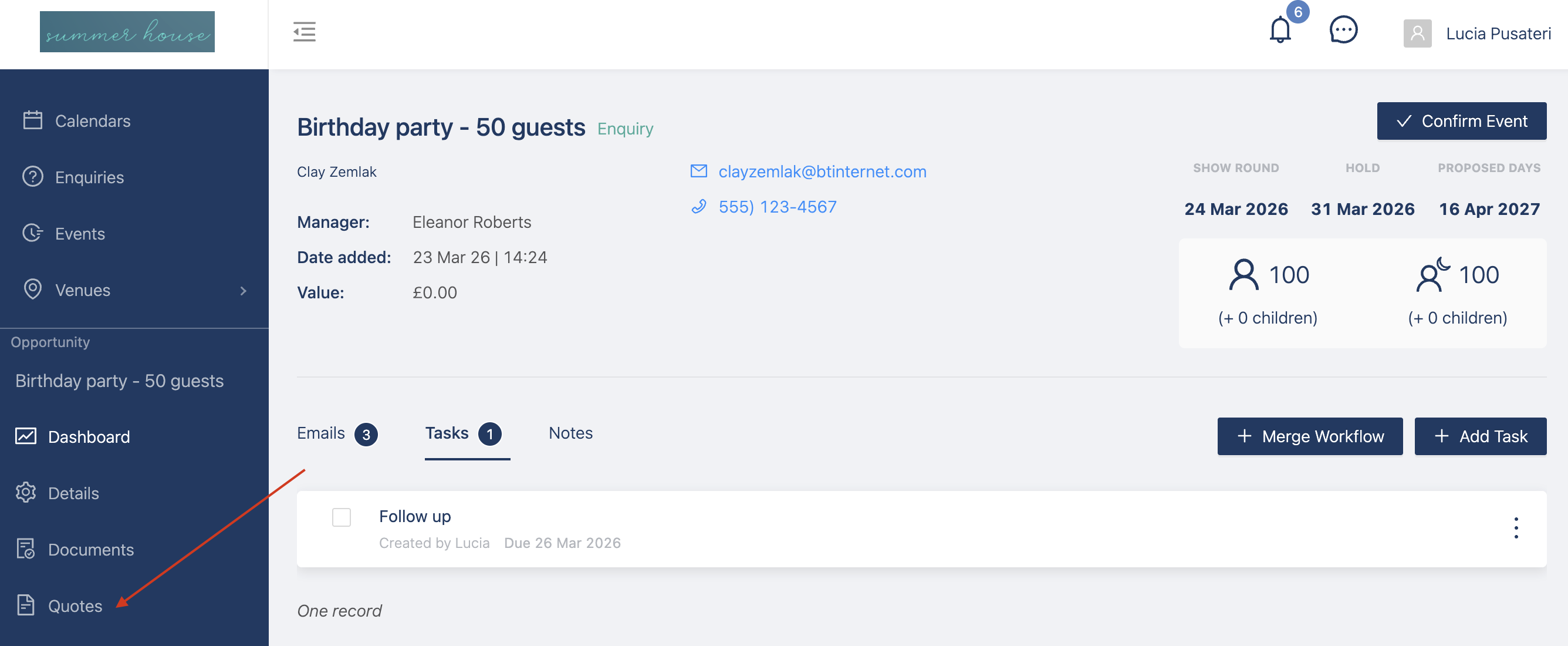
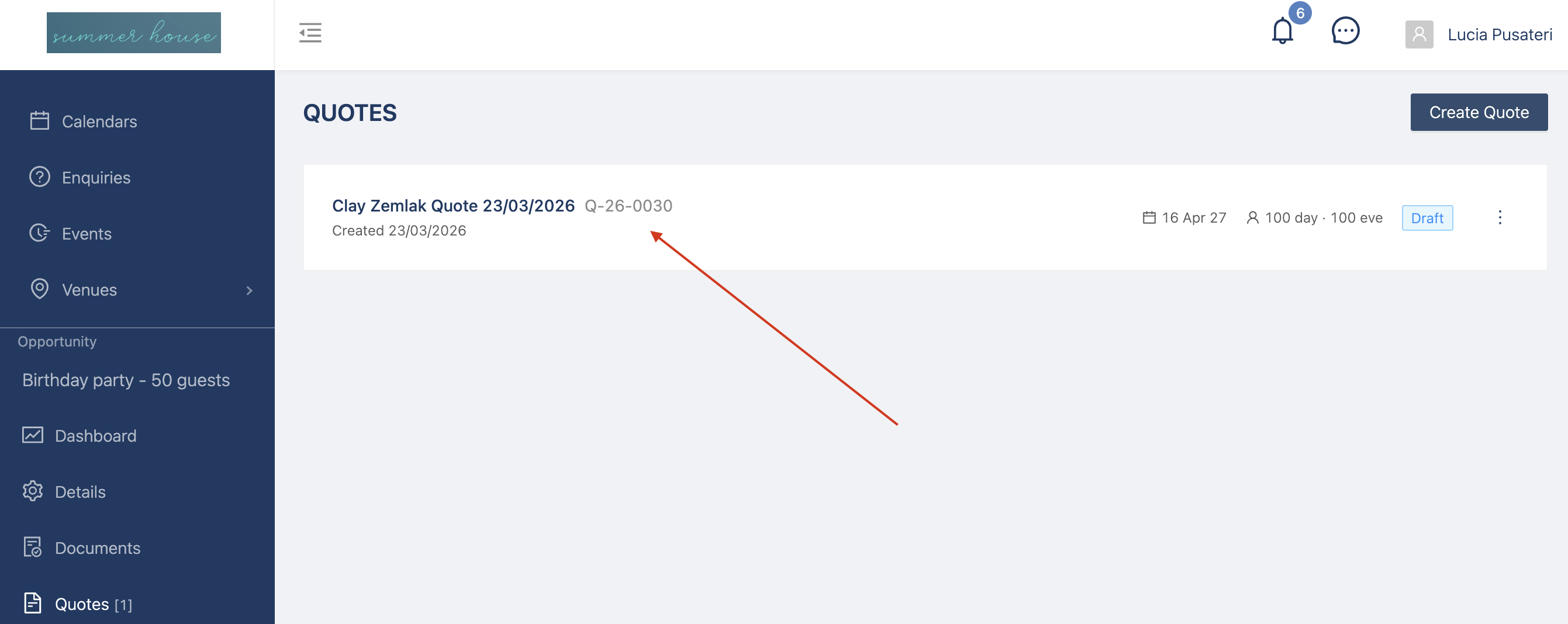
When you are ready to create a quote, click on "Quotes"
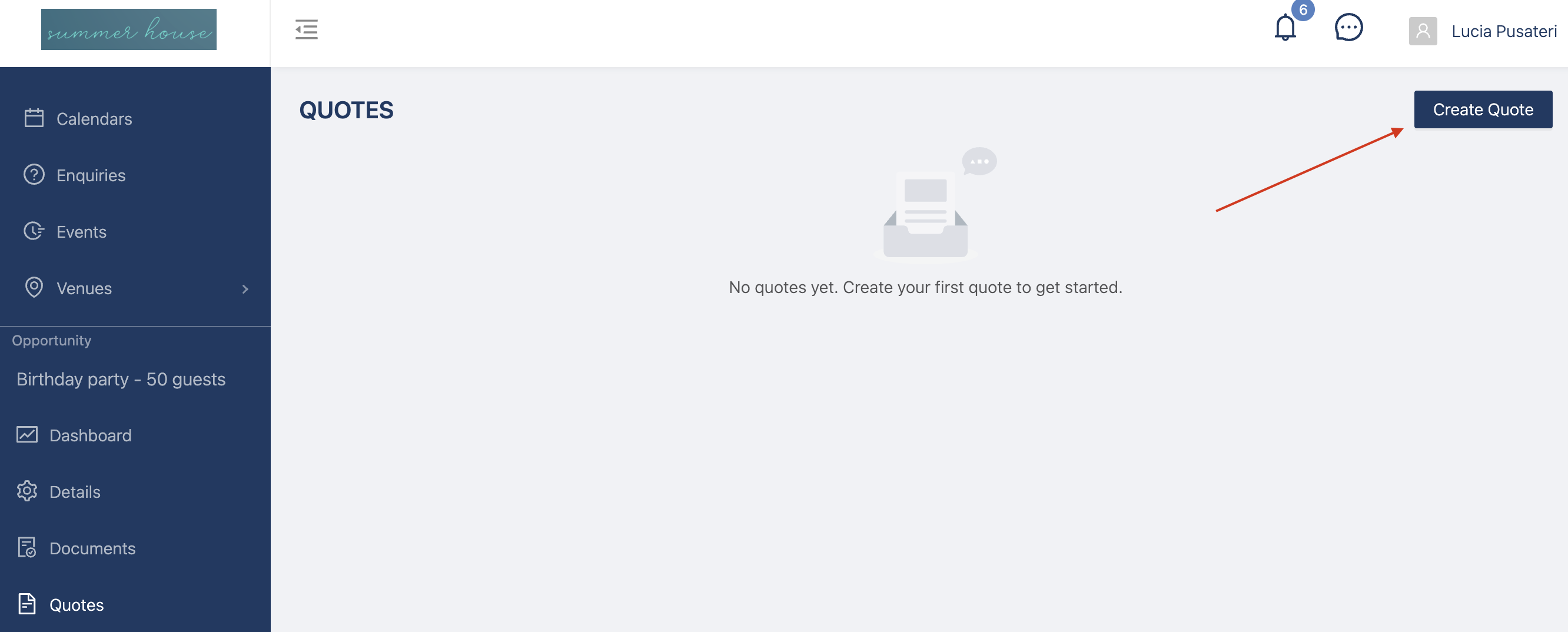
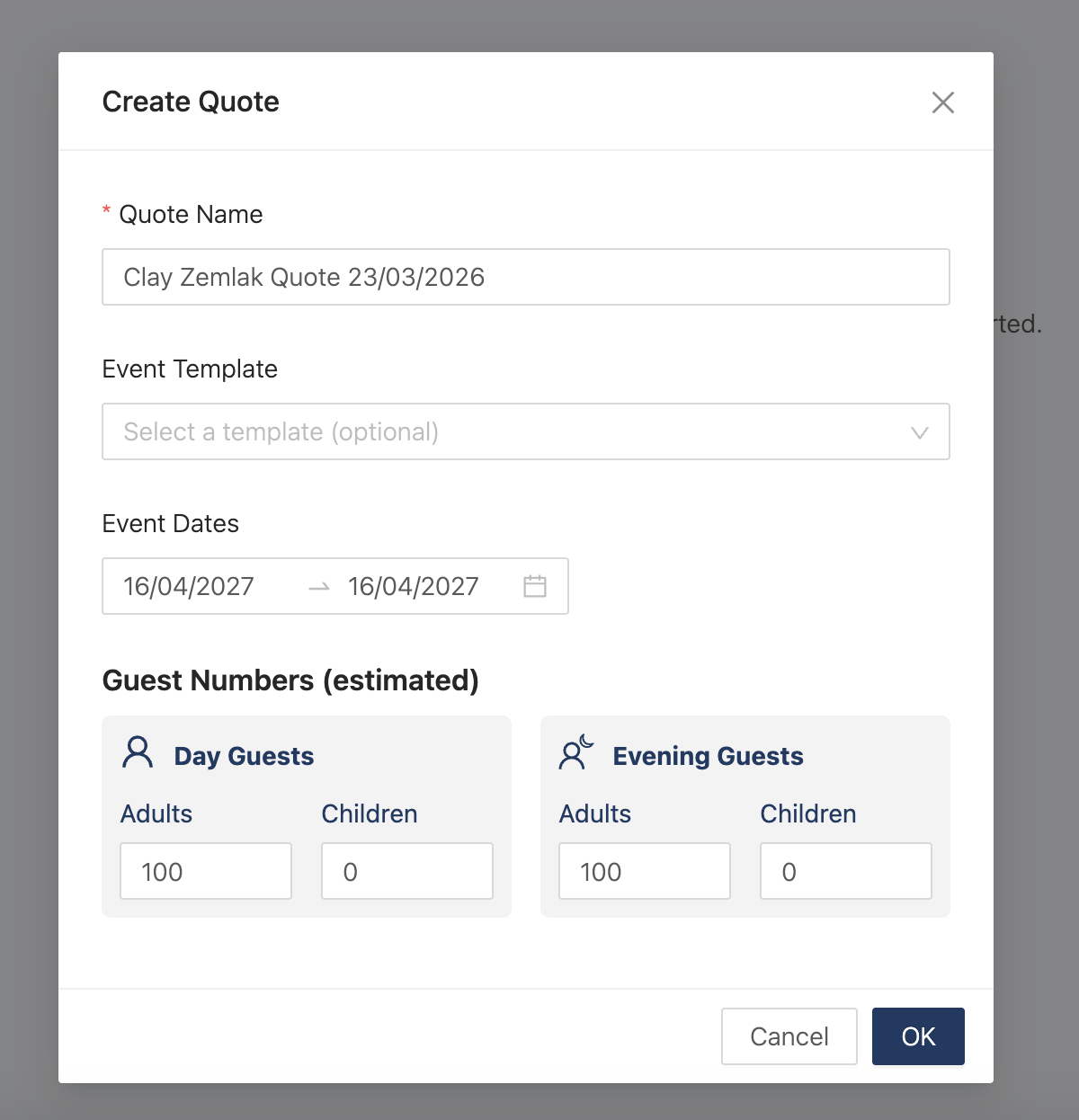
Click on Create Quote to start creating your quote
Add the name you want to give the quote, it will automatically have the name of the customer and today's date.
It will be automatically filled out with the information from the Details area, like Event Dates and Guest Numbers.
You can also add an Event Template to link the itinerary to the quote
Click on the Quote to start adding items and packages
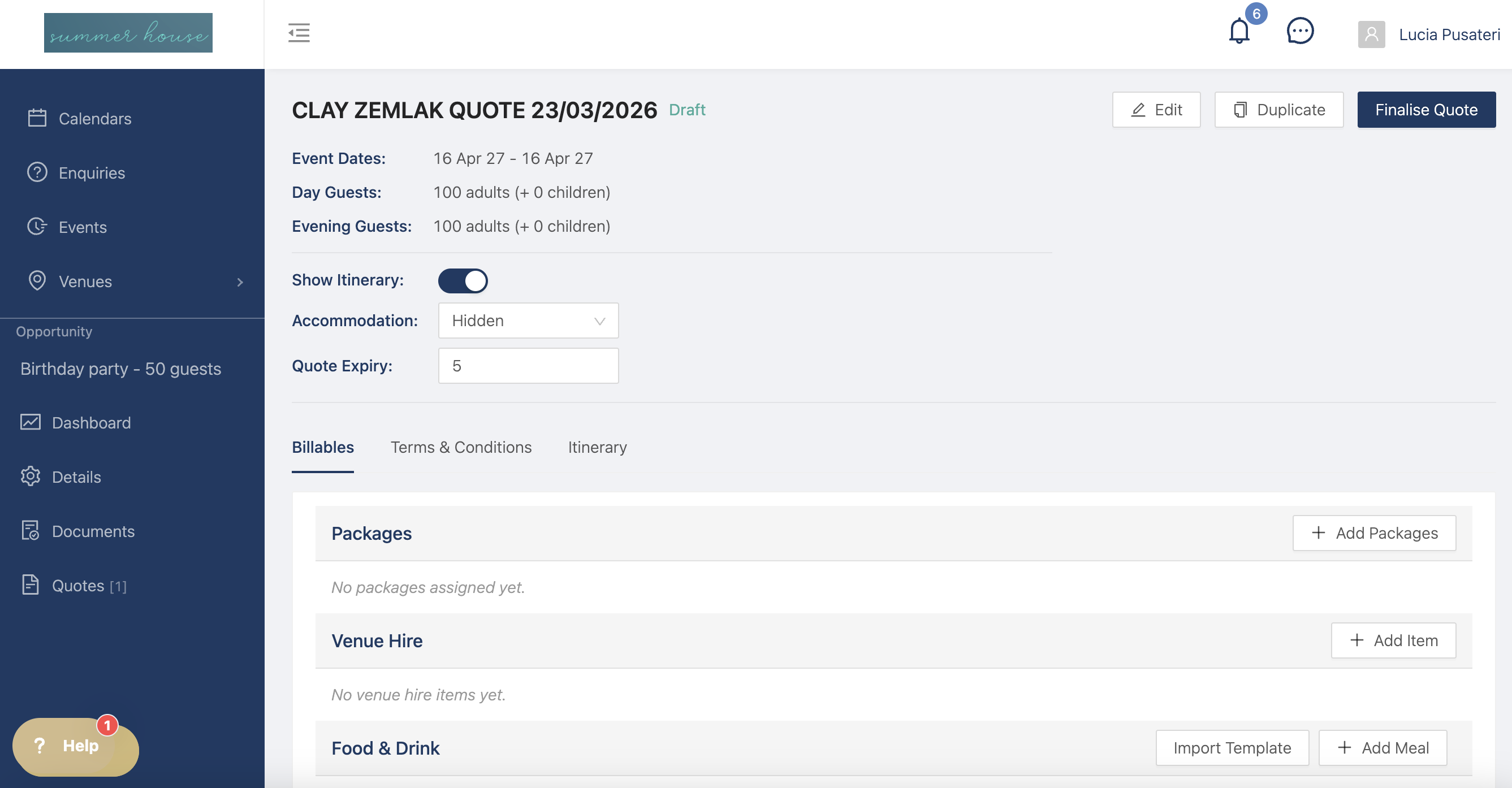
Add packages, venue hire, food and drink, add ons, and ad hoc items to build your Quote
Click on the Terms & Conditions tab to add specific terms, if you don't add them, they will default to the standard terms you set in Billing & Quotes on the venue side.
Click on the Itinerary tab to add itinerary items to add meals or other items
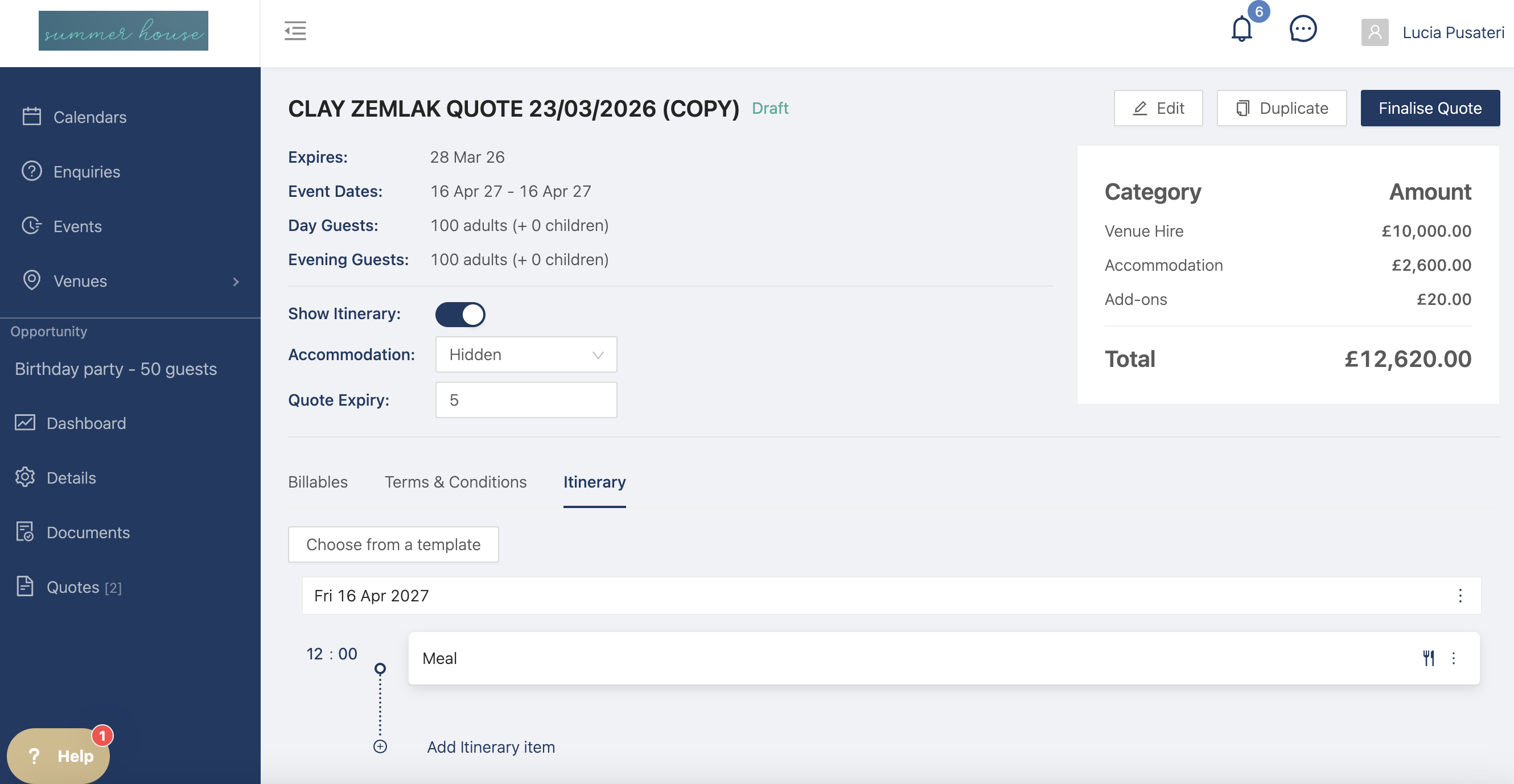
Once your happy with your quote, click on Finalise Quote to publish it and share with your customers. You can decide to create a link to share via email, message, and more.
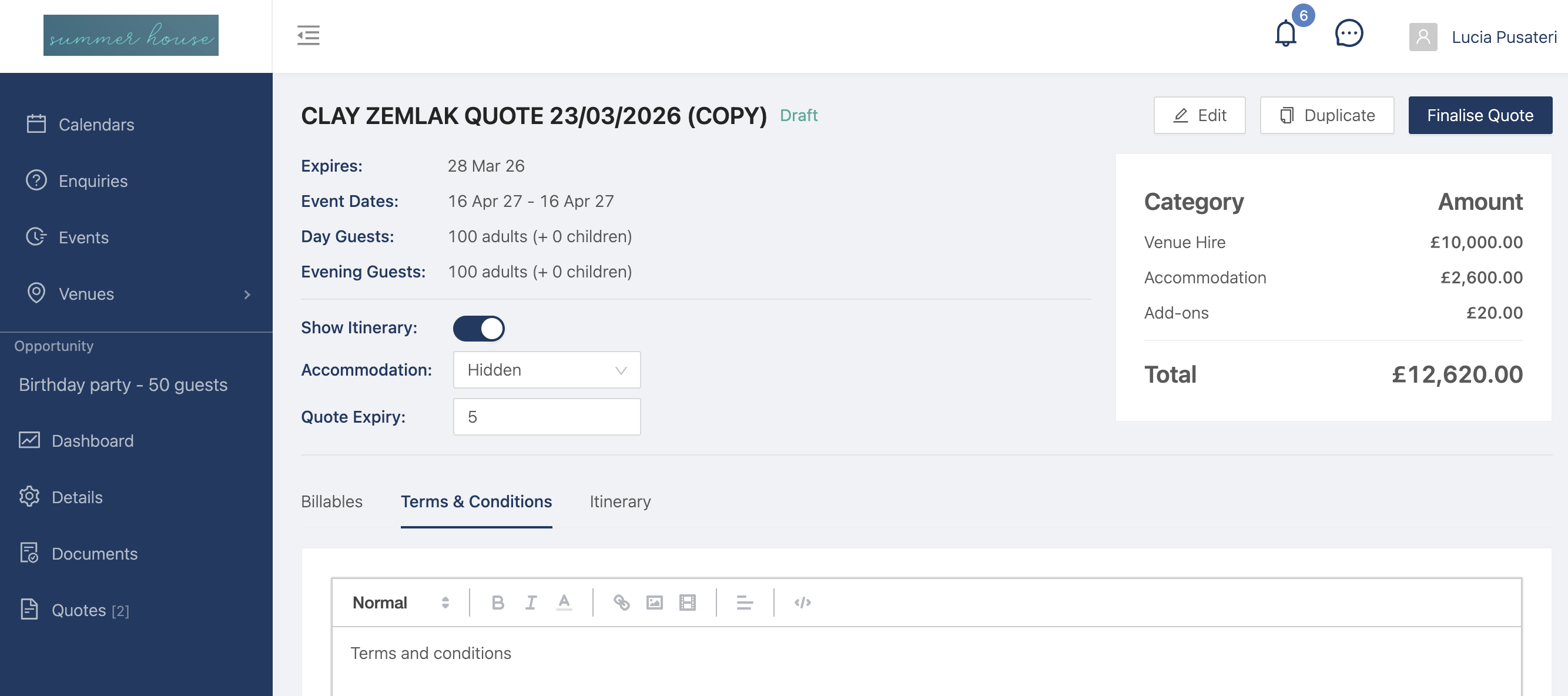
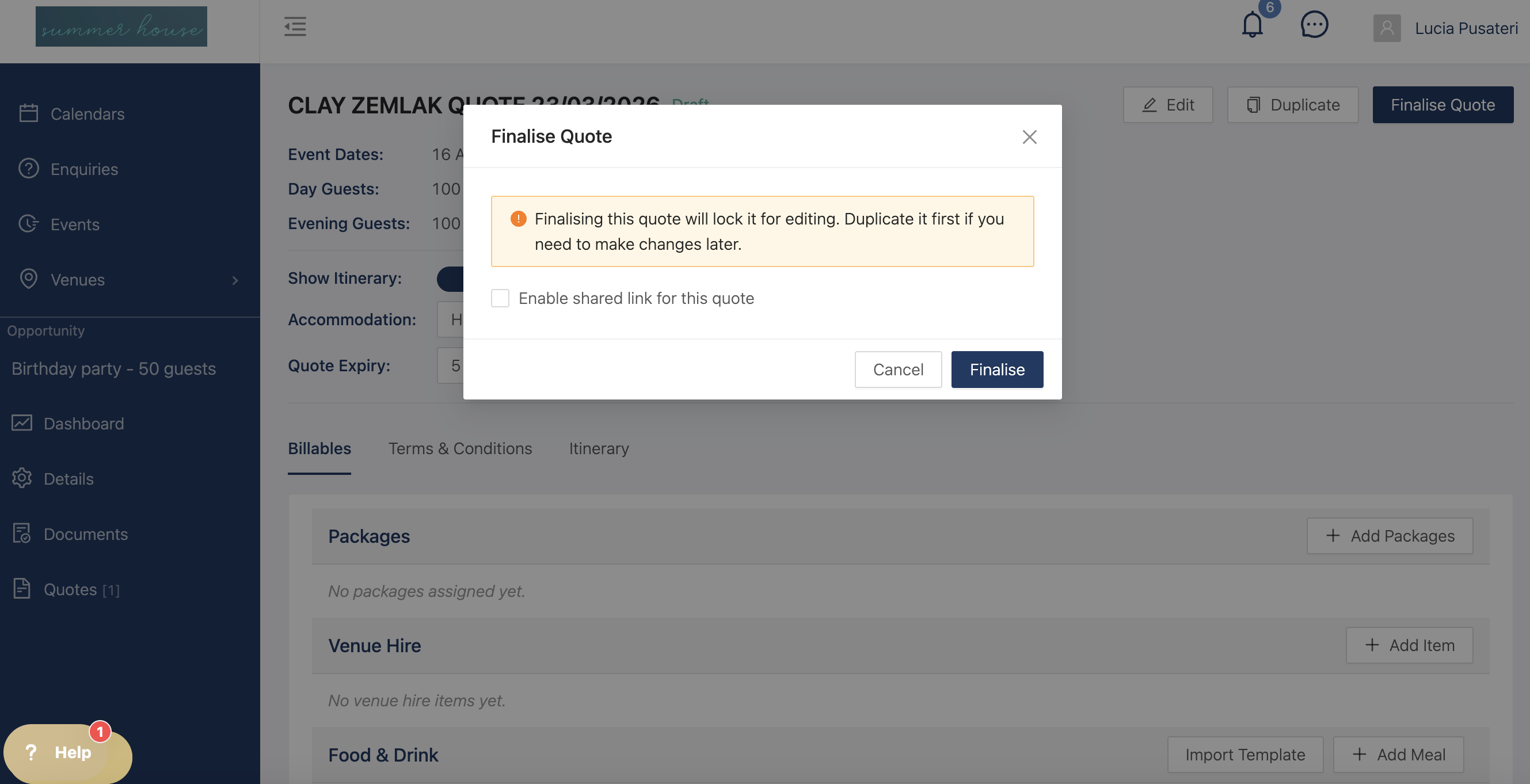
NB Finalising a quote will lock it for editing. You will have to duplicate it to make any changes
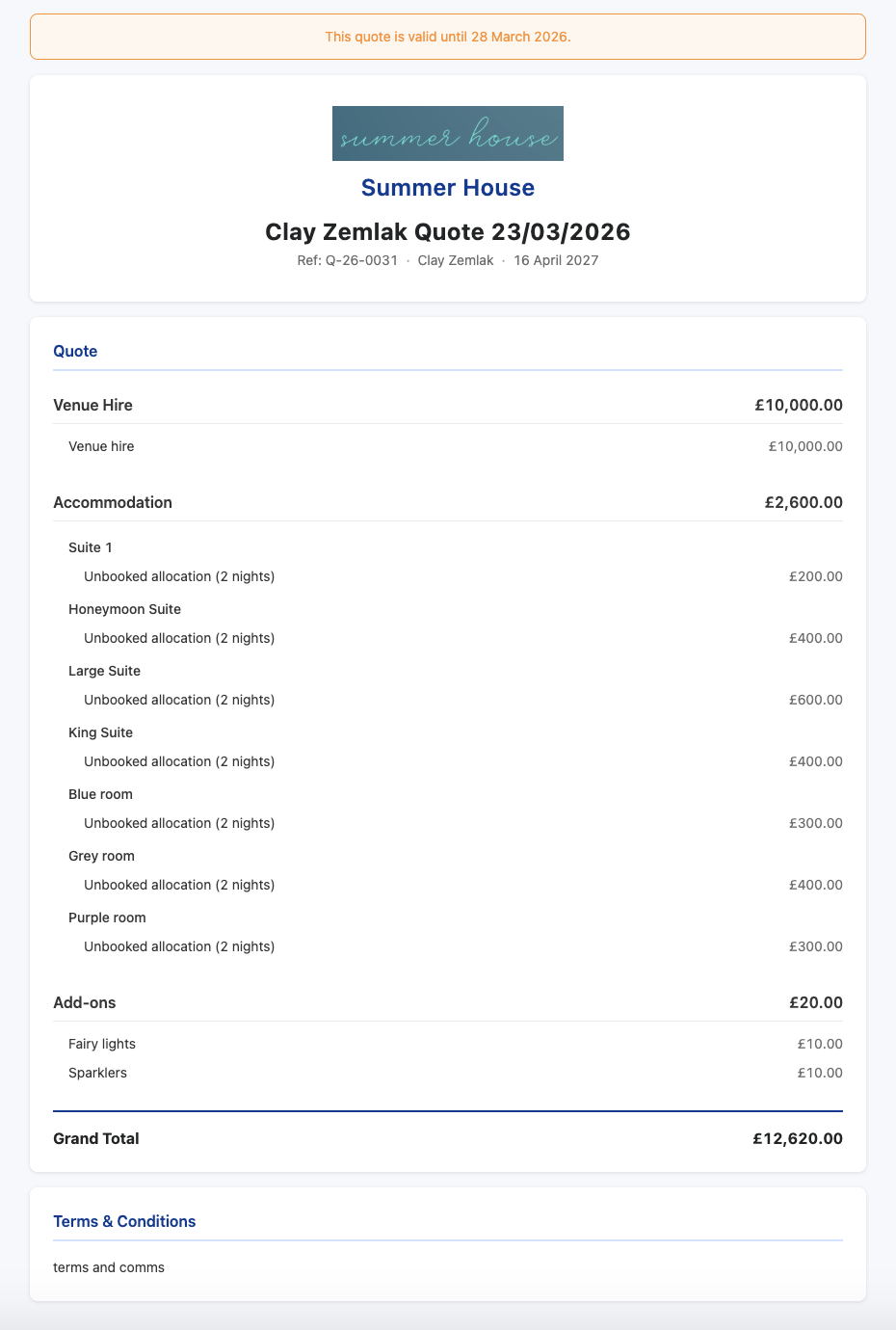
Once the quote is finalised you can share the link, download it, and email the customer directly.
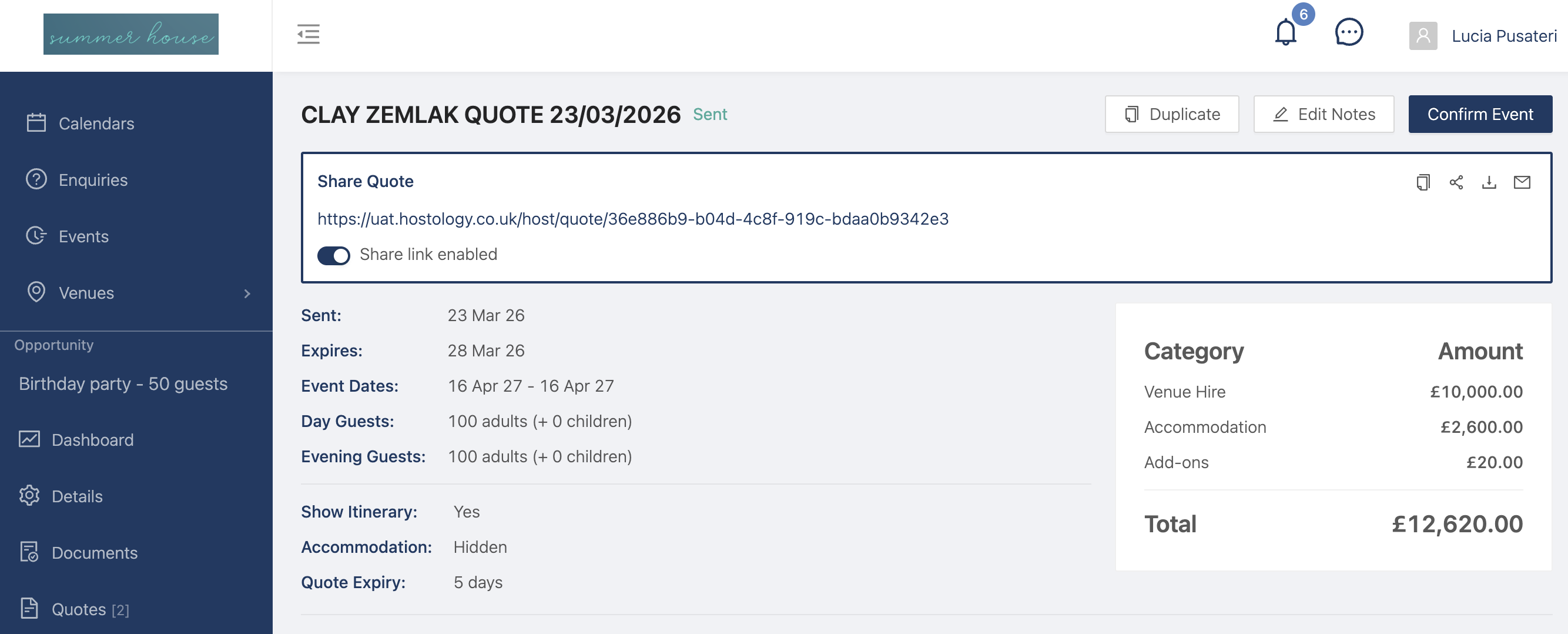
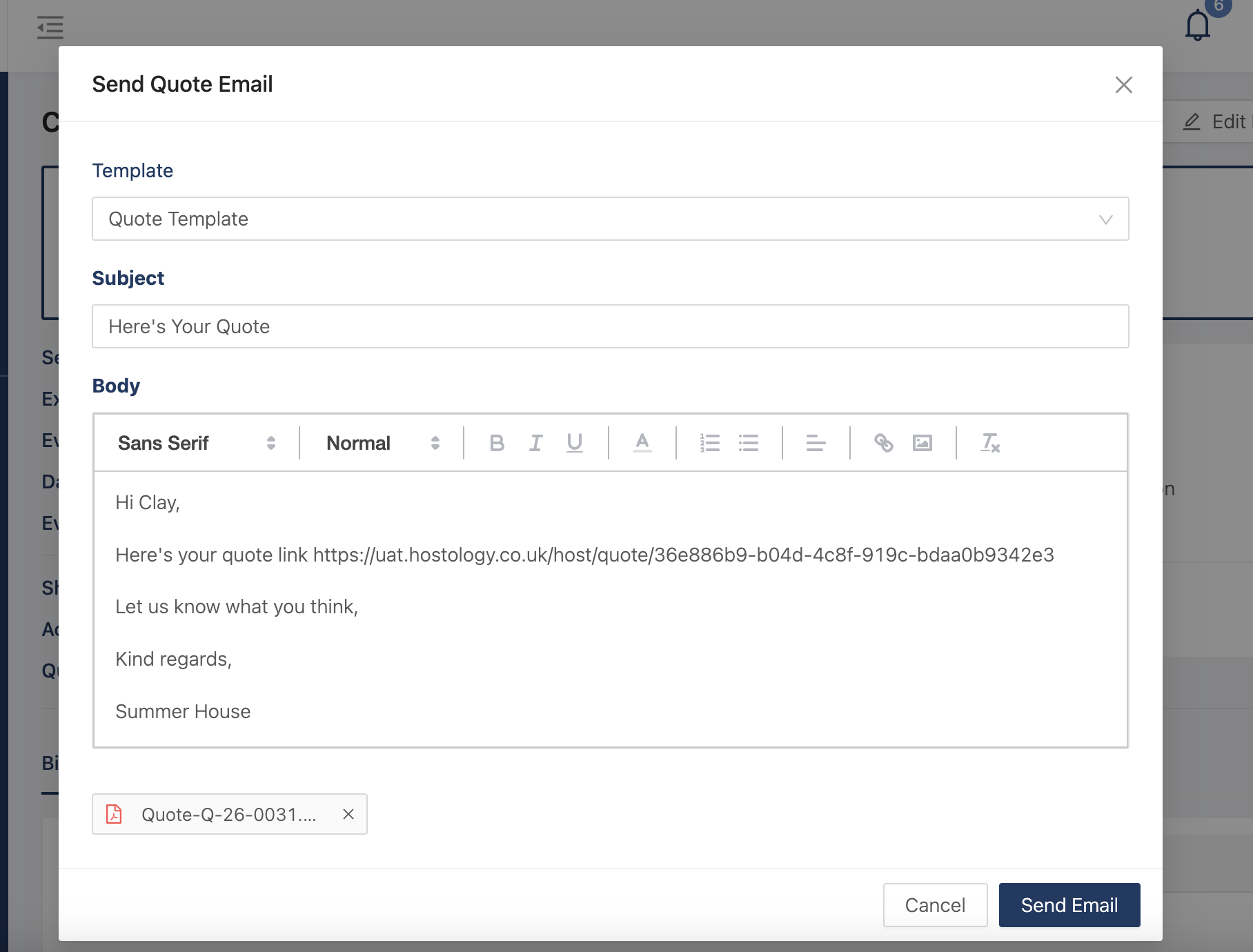
Click the email icon to share the quote directly via Hostology. The email will automatically have the pdf of the quote.
NB Set up your email in the Email Templates to make this process even faster, add tags to automatically fill with the customer name, quote link, and more.
If you enabled the share link, your customer will be able to click into it, see the quote, read your terms and conditions and confirm the booking.