
Add Calendar Entries
How to Add New Entries to the Calendar in Hostology
The Hostology calendar allows you to keep track of important dates, bookings, appointments and other activities all in one place.
You can add new calendar entries and choose whether to link them to an existing Event, an Enquiry, or create a General entry.
NB. Showround bookings will now be visible on the calendar and will be linked to the enquiry or event
Step 1: Go to the Calendar
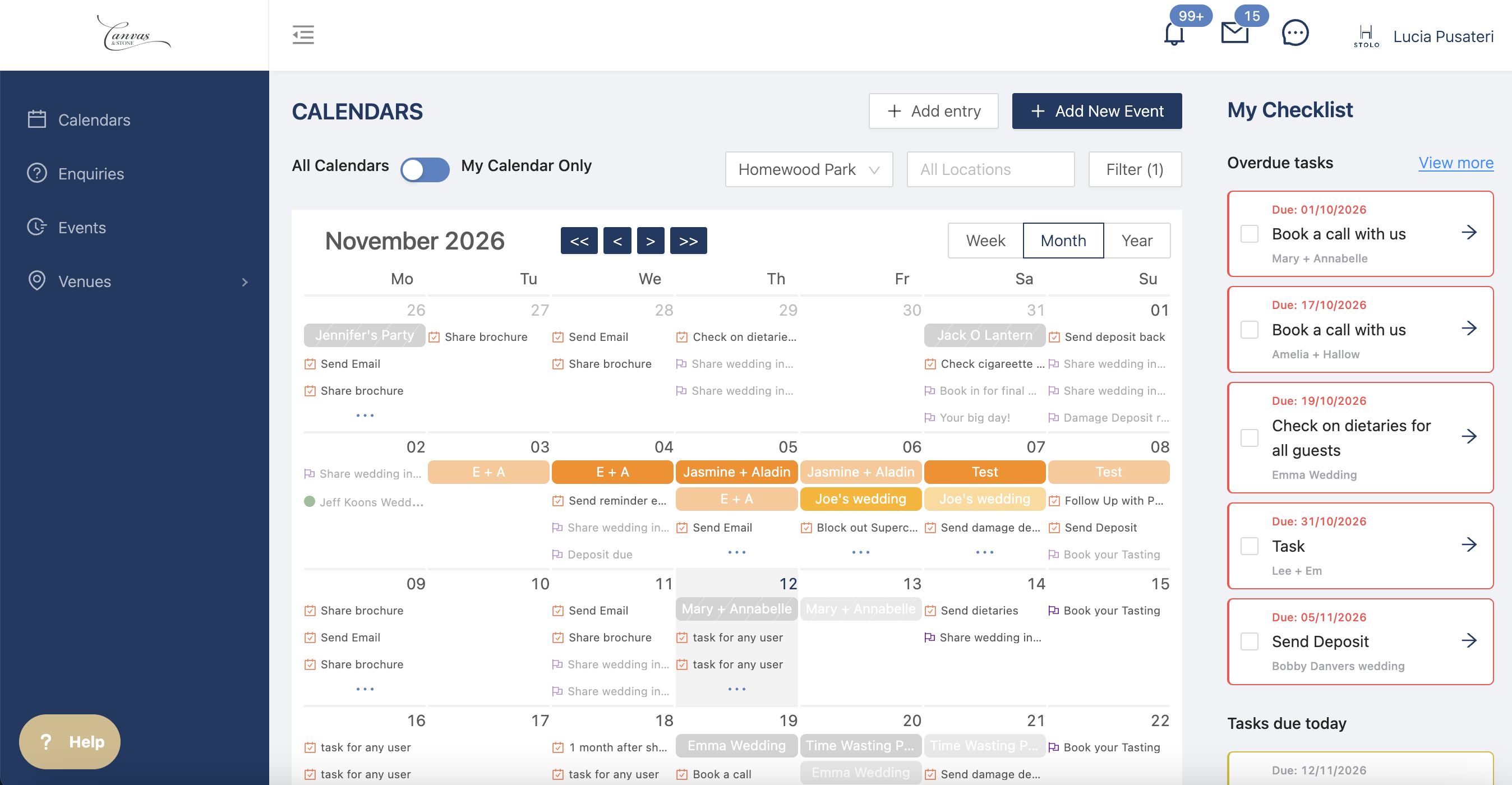
- Go to the Calendar.
- Find the date you would like to add an entry to.
- Select the option to Add Entry or click the relevant date (depending on your calendar view).
Step 2: Choose the Entry Type
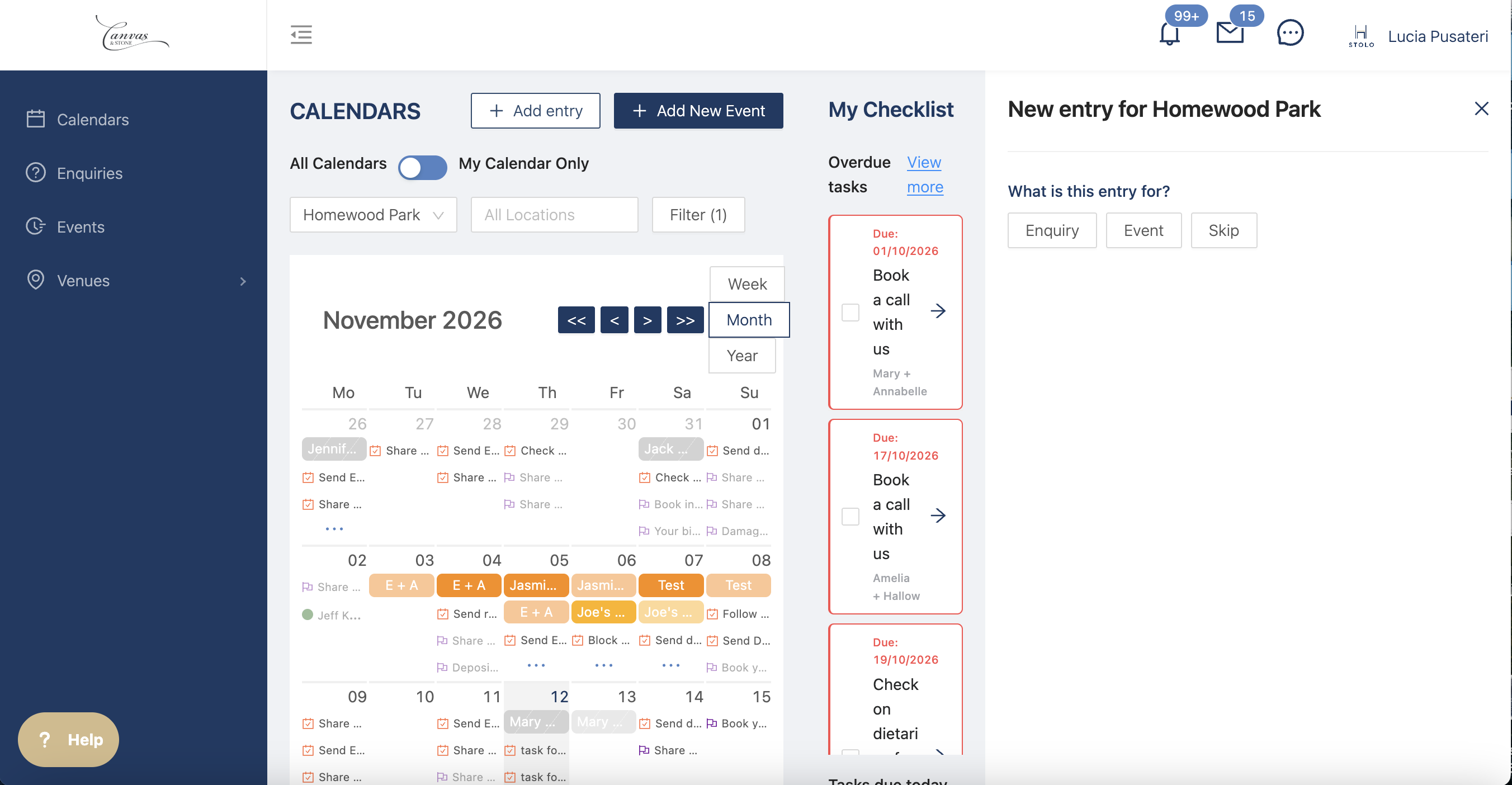
Hostology gives you the flexibility to categorise your calendar entries depending on what they relate to.
There are three options: link to an enquiry, event, or skip and add it to the general calendar
1. Enquiry
Choose Enquiry if the calendar entry relates to an existing enquiry.
- Select the Enquiry option.
- Find and select the relevant enquiry.
- Choose the type of entry: milestone, meeting, or showround.
- Save your entry.
2. Event
Choose Event if the calendar entry relates to an existing event or booking.
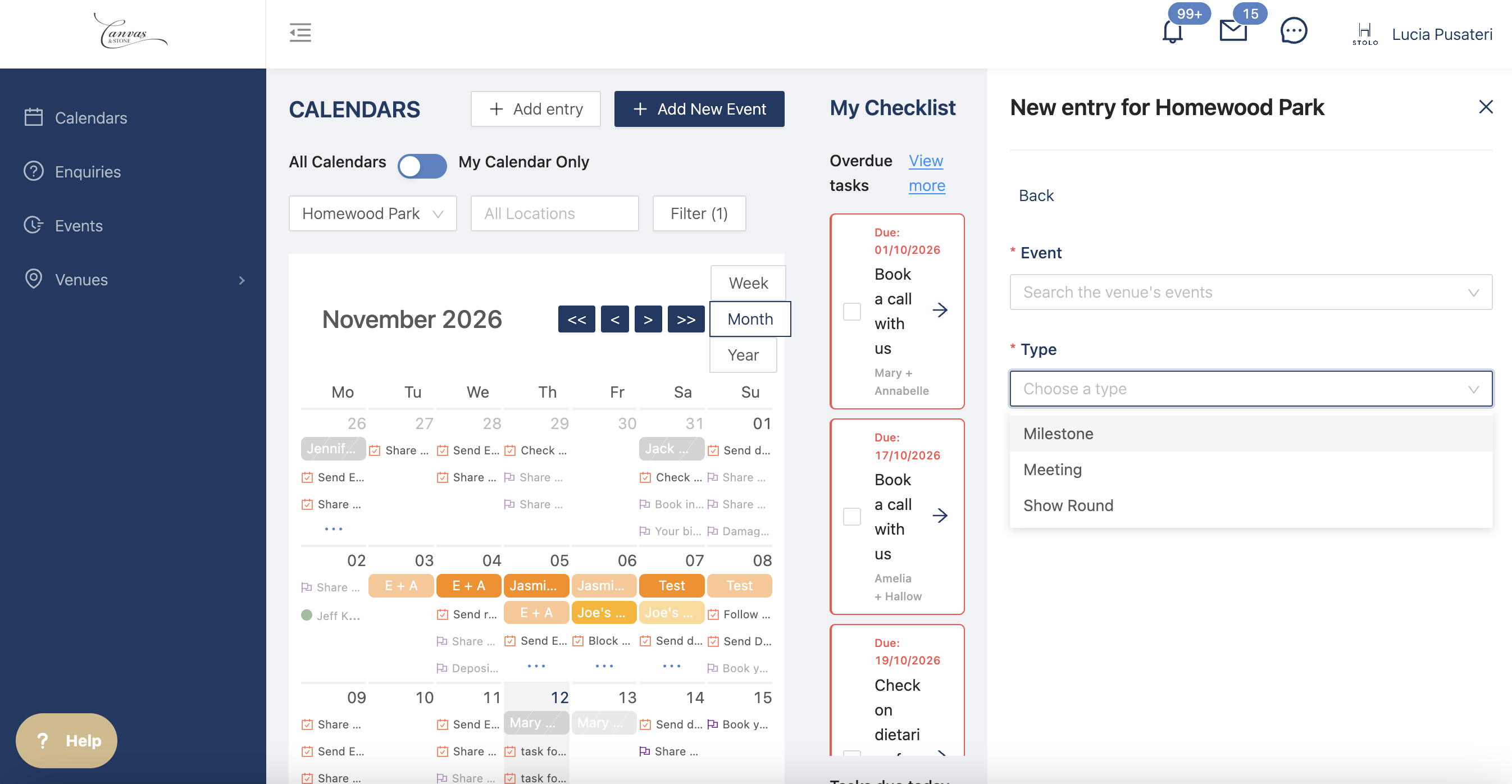
- Select the Event option.
- Find and select the relevant event from your existing events.
- Choose the type of entry: milestone, meeting, or showround.
- Save your entry.
3. Skip
Choose skip if the calendar entry doesn't need to be linked to an existing event or enquiry.
- Select the General option.
- Choose the type of entry: meeting, showround, staff holiday, maintenance, or other.
- Enter the title and relevant details.
- Choose the date and time.
- Add any notes or additional information.
- Save your entry.
General entries are useful for internal meetings, staff activities, maintenance, reminders and other important dates that your team needs to be aware of.