Packages
You can now create packages for your events!
Packages are useful as it means you can bundle your billable items to a set pricing. This can be done per package or per person.
Take a look at the video below for a tutorial on how to get started
To create a package, go to the venue section, under billable items, and select "Packages". Click on "Add new" at the top right to start creating your first package. 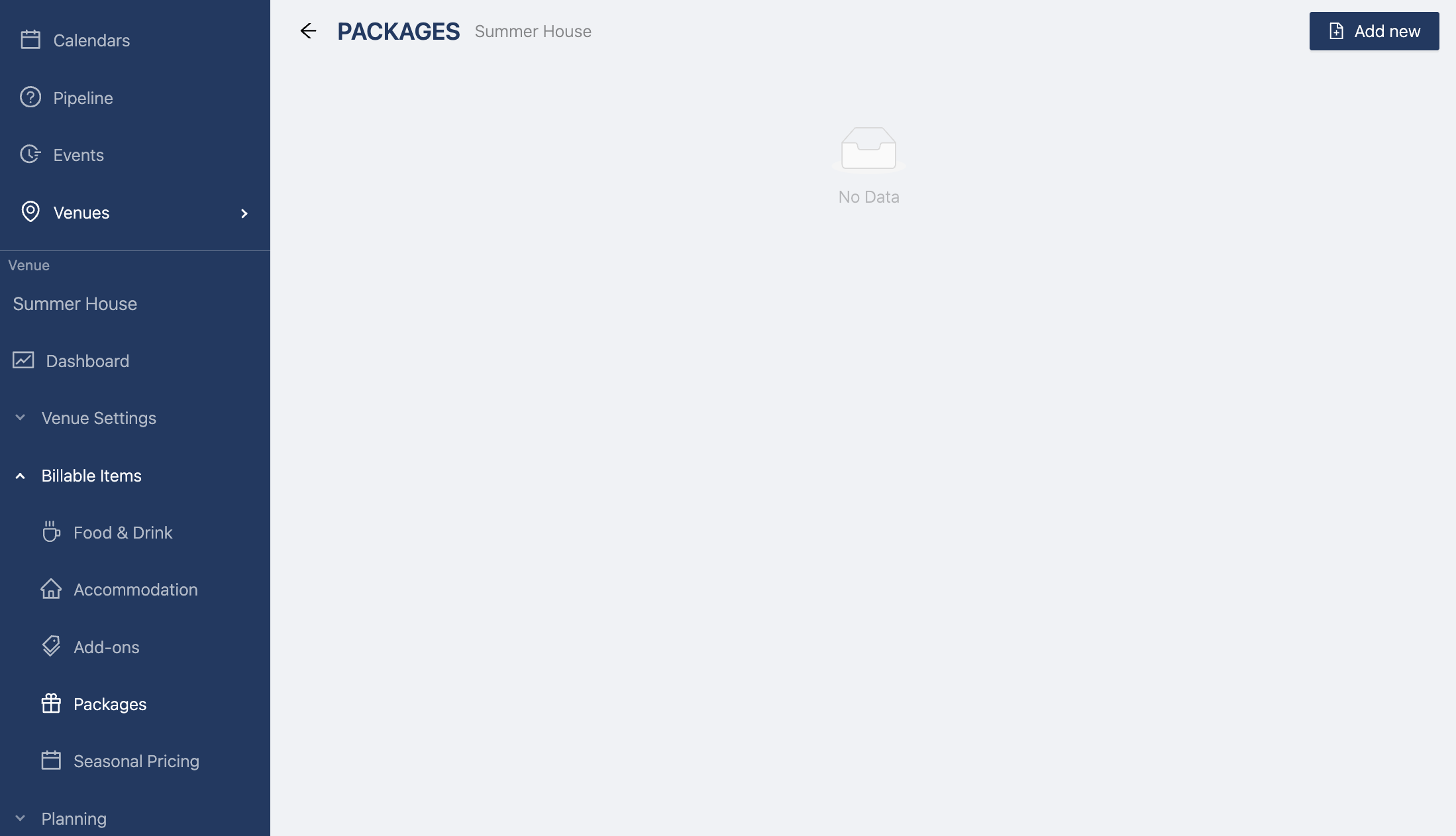
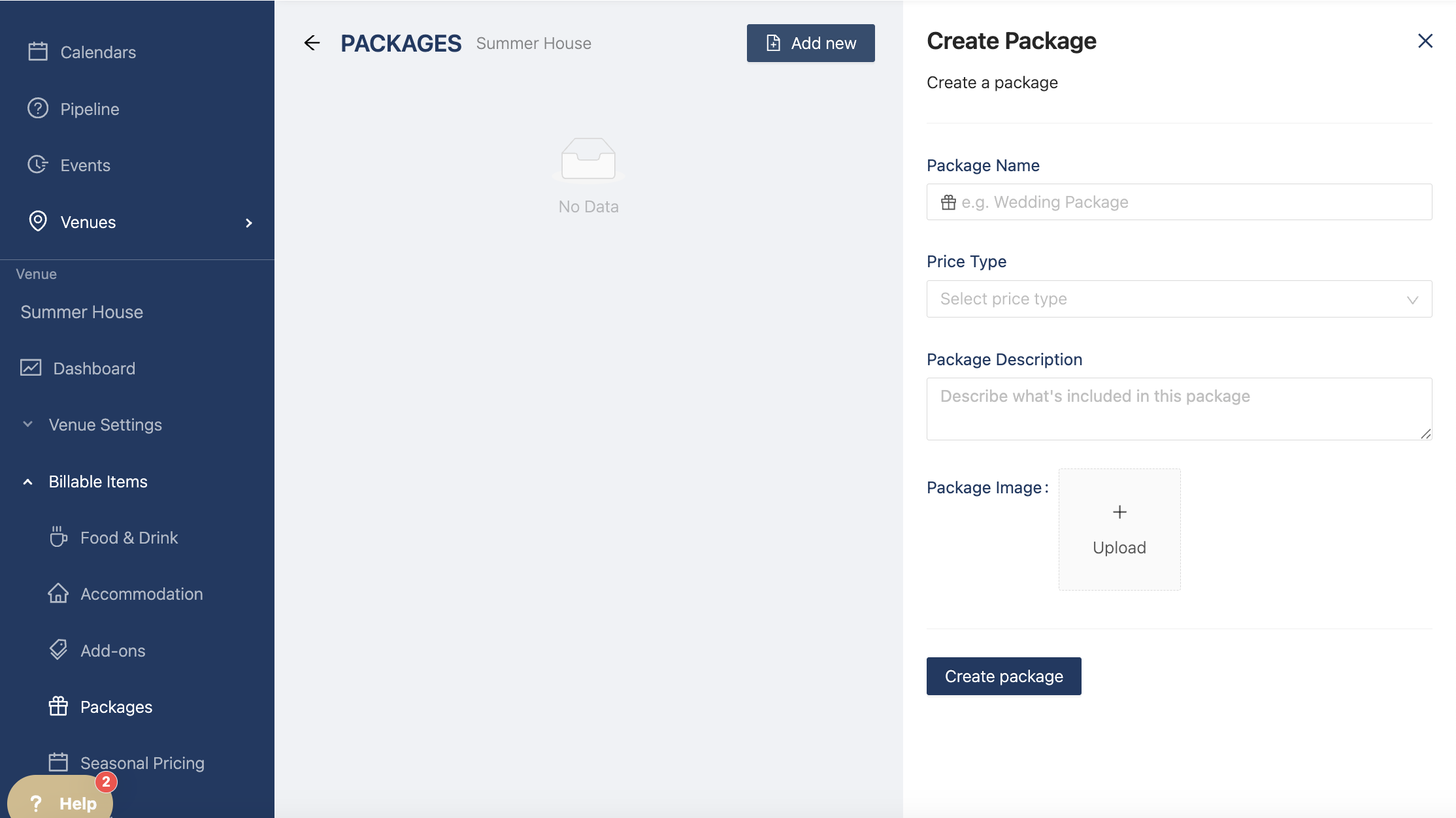
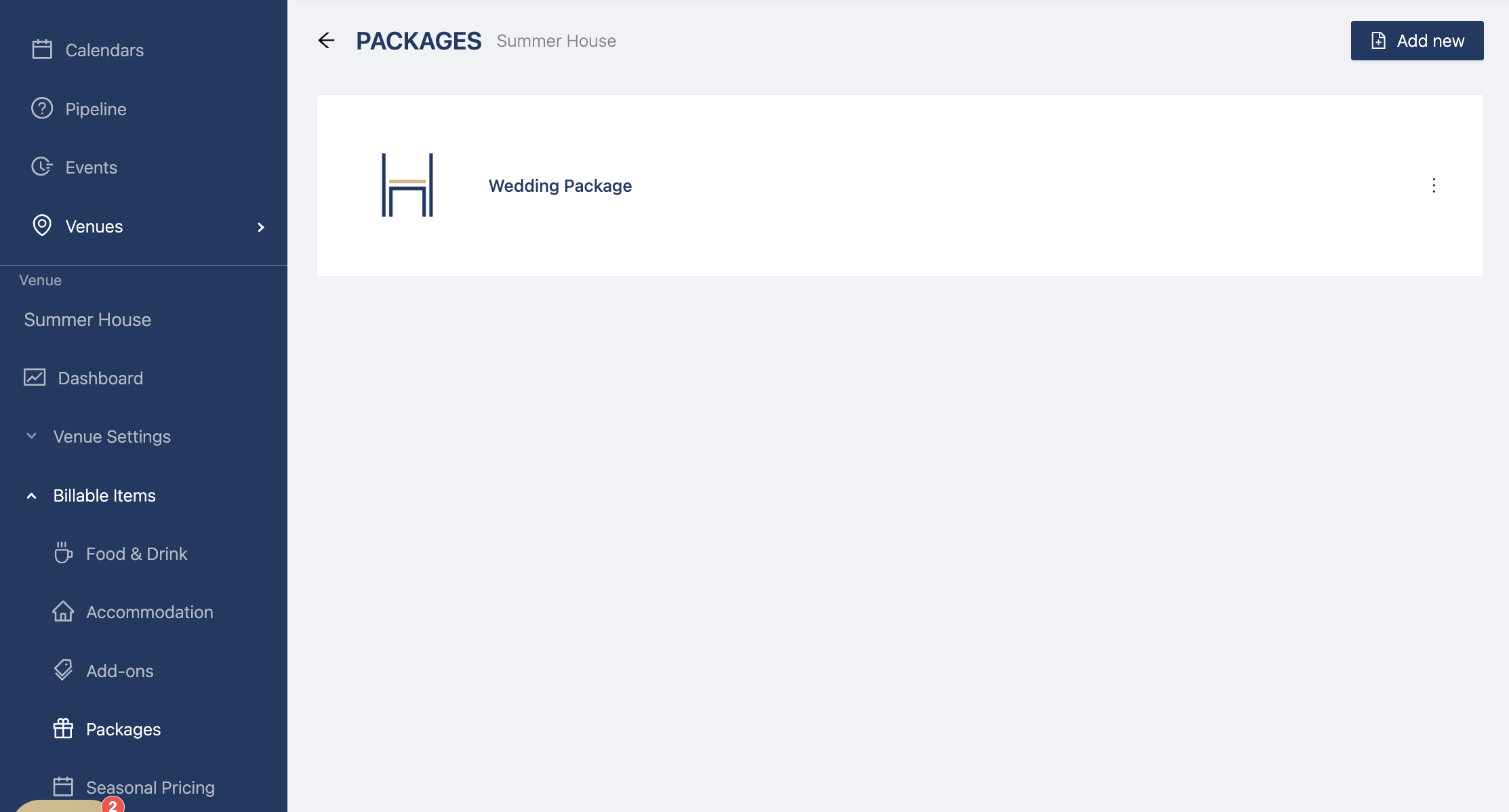
At the top select "Add pricing rule" to set up the rules for your package.
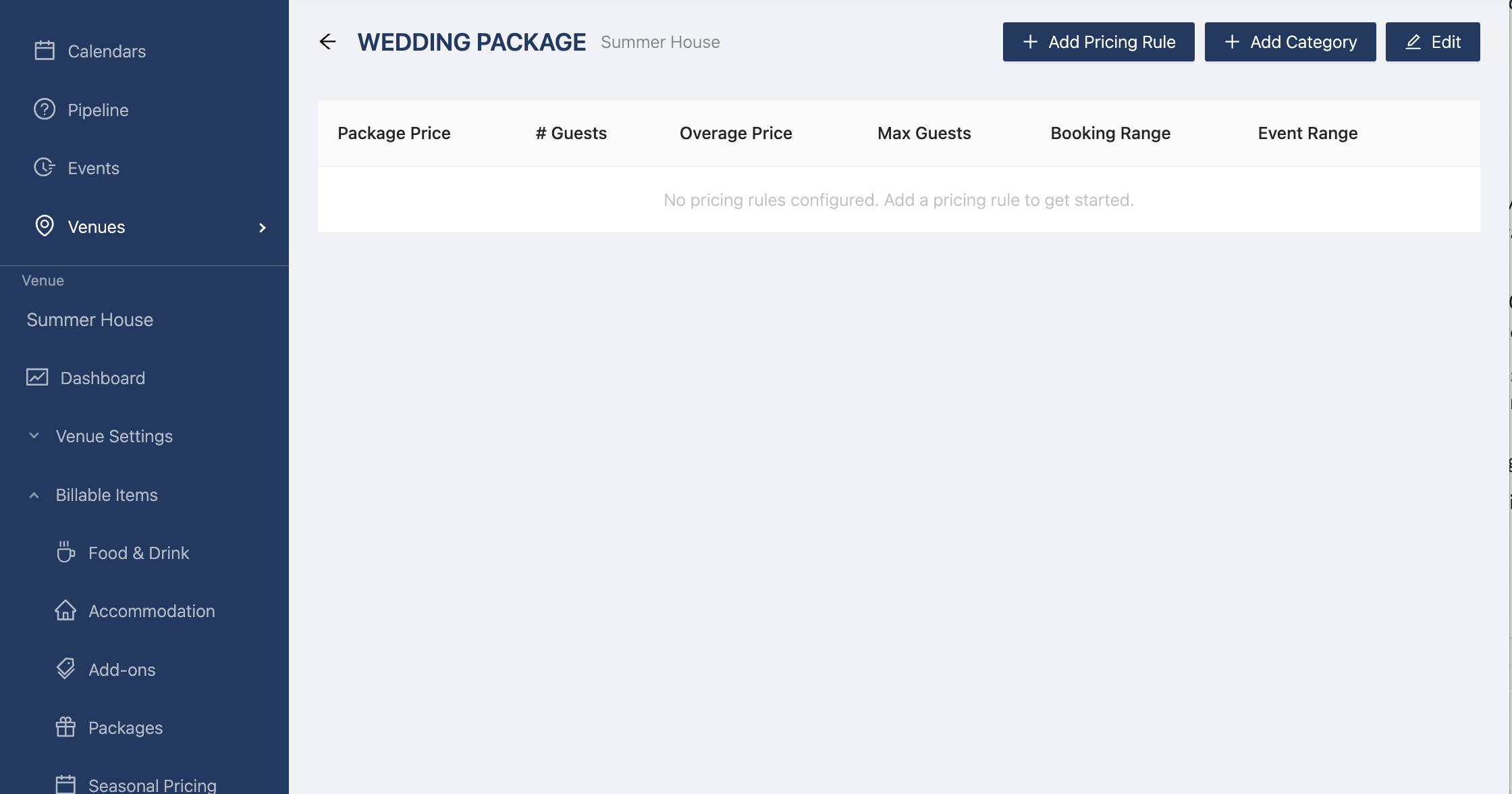
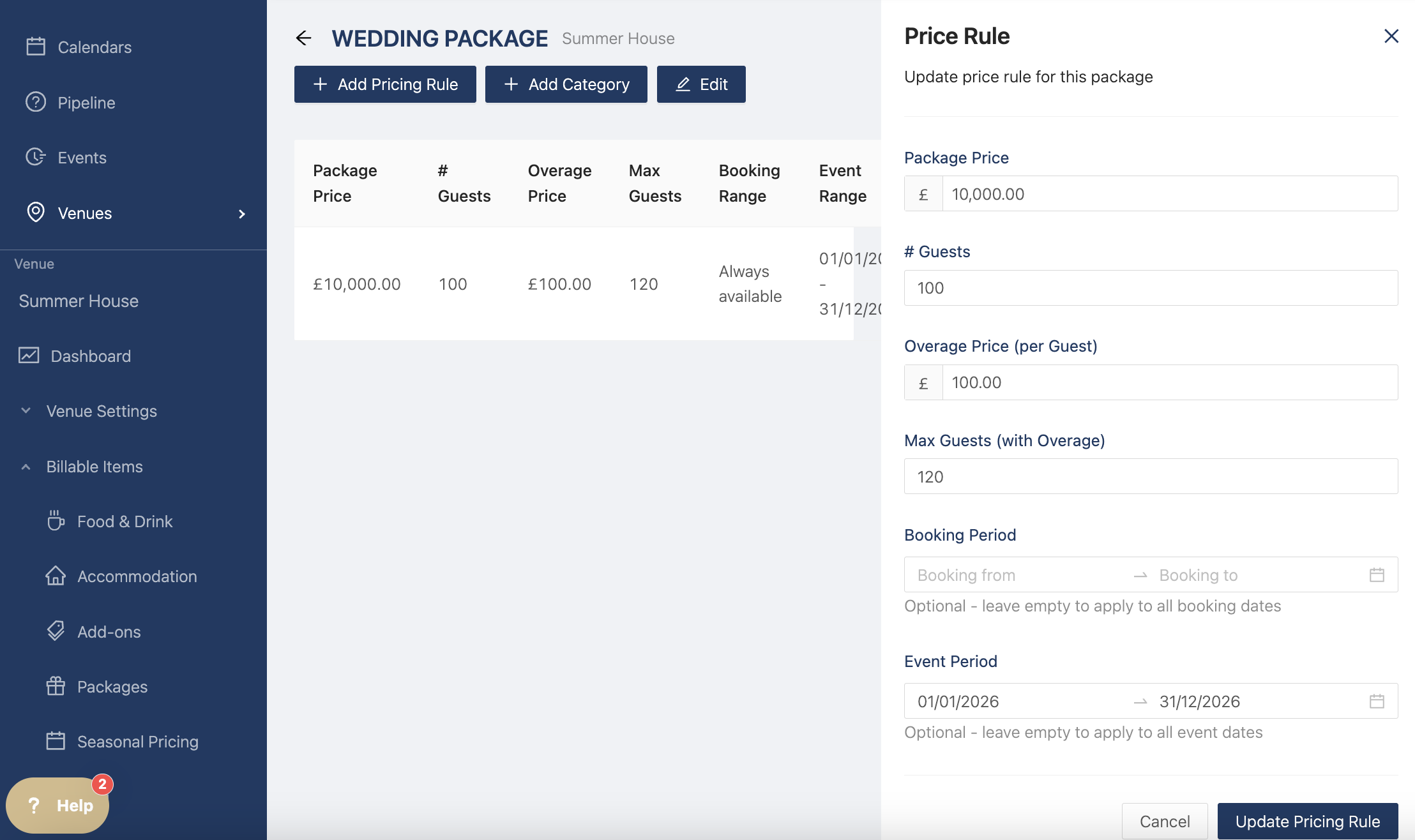
Add your pricing rules
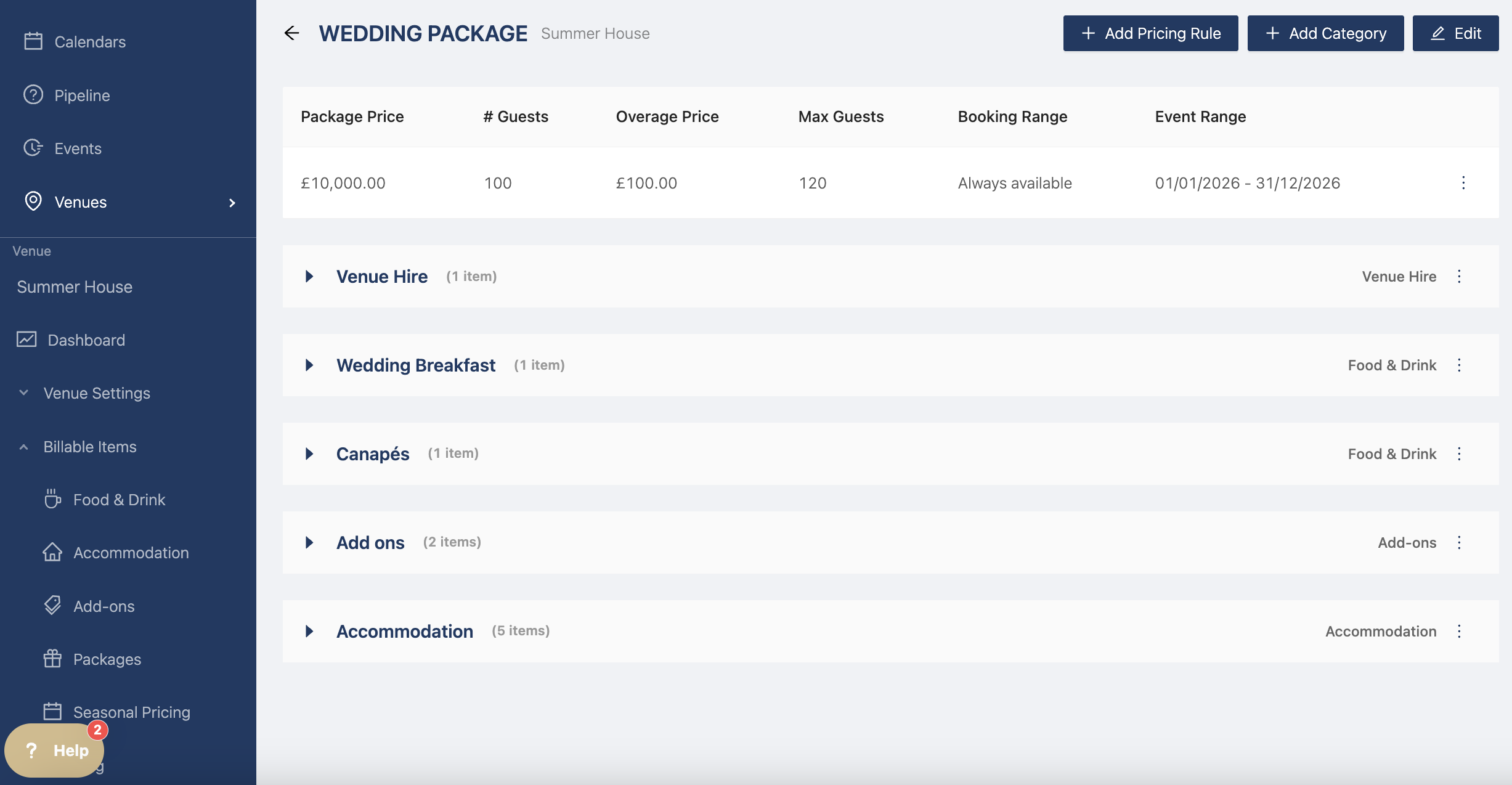
- Package price
- # Guests
- Overage price (per guest)
- Max guests (with overage)
- Booking period (if this package is only available for a specific booking period)
- Event period (if this package is only available for a specific event period eg. 2026)
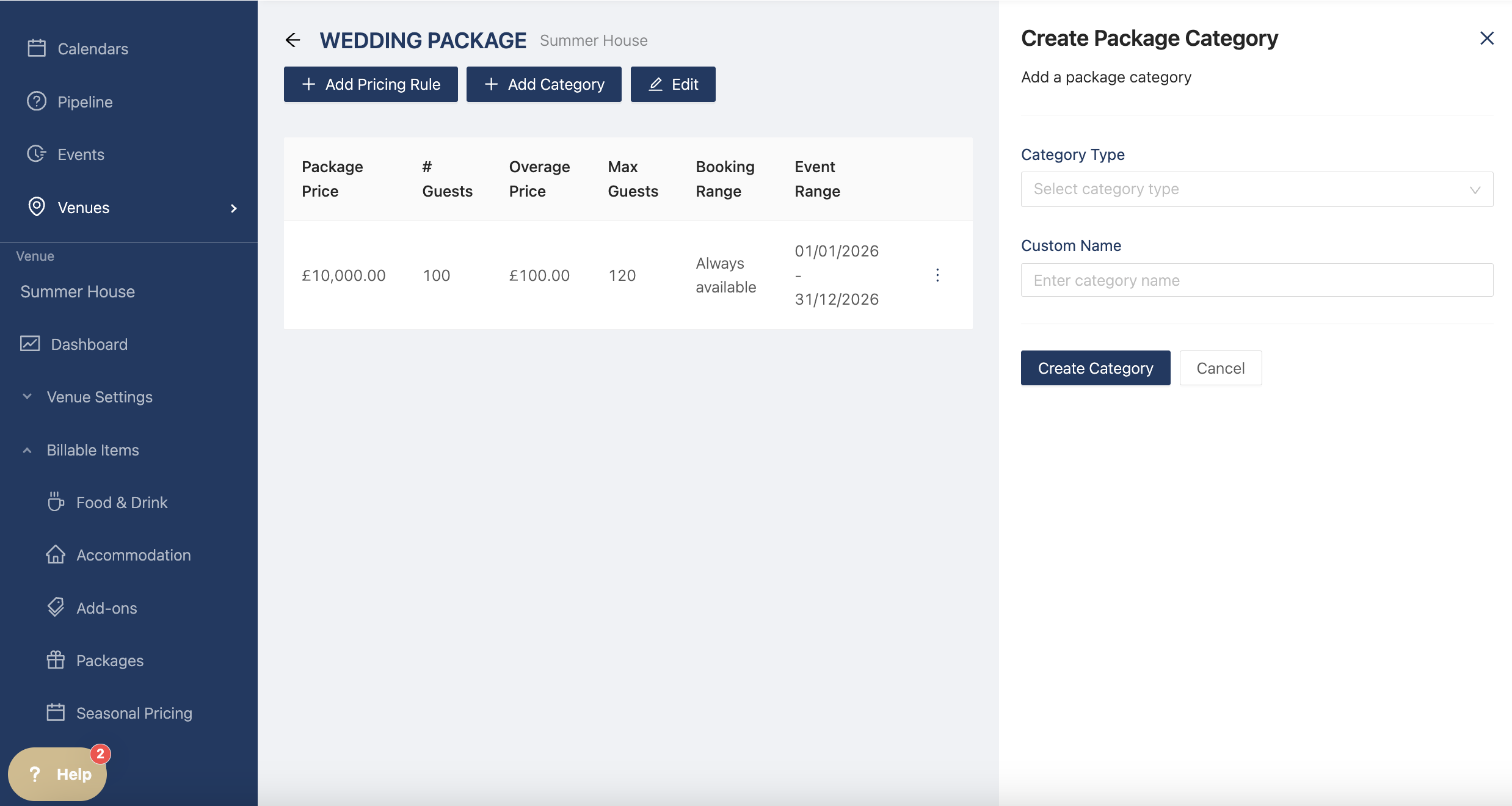
Now you can add your billable items by clicking "Add Category". The drawer opens and you can select the category types (Venue Hire, Food & Drink, Accommodation, Add Ons, and Additional Items)
Select which one you want to include and give it a custom name. Click on Create Category so it can be added to the package.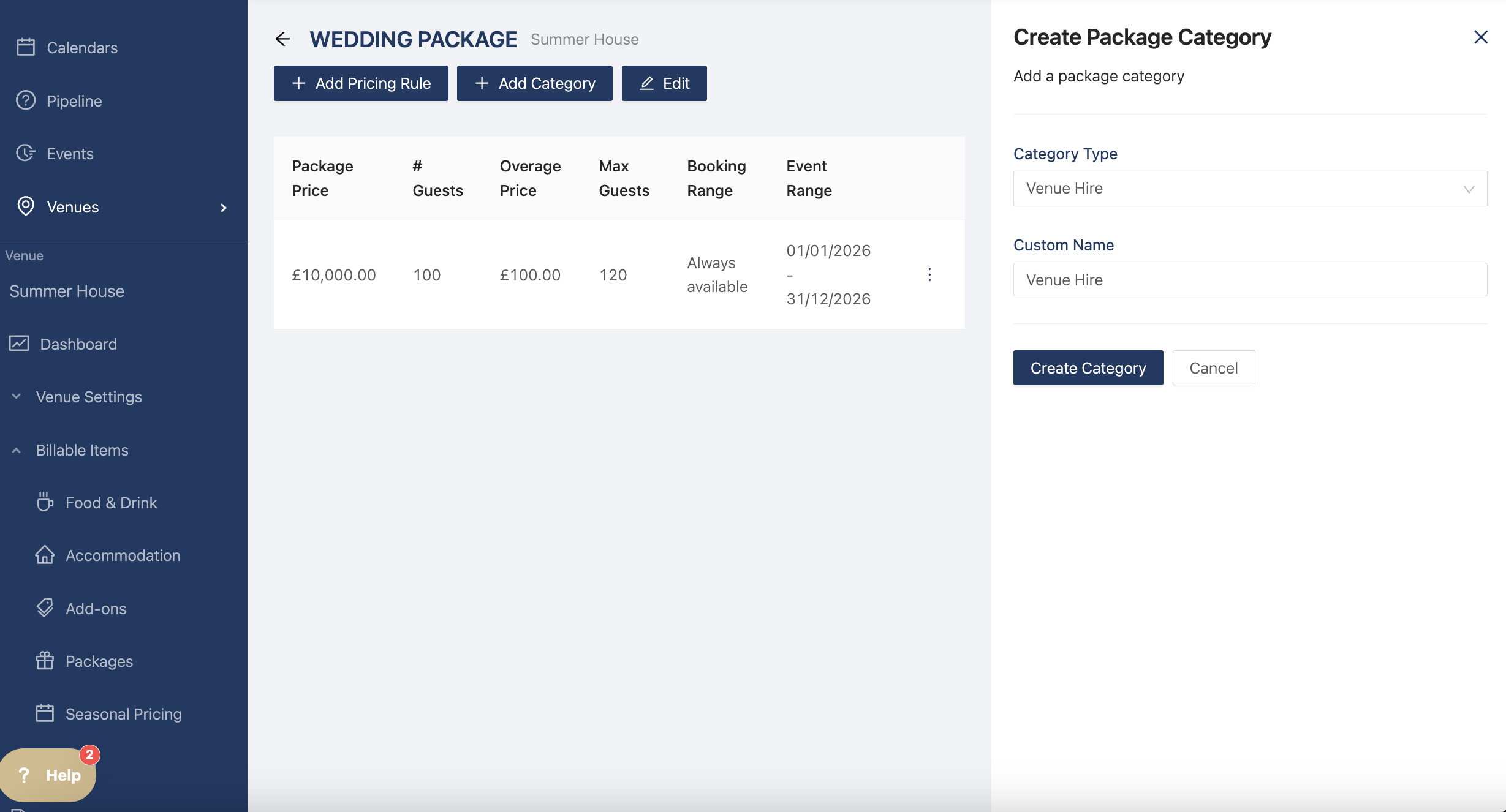
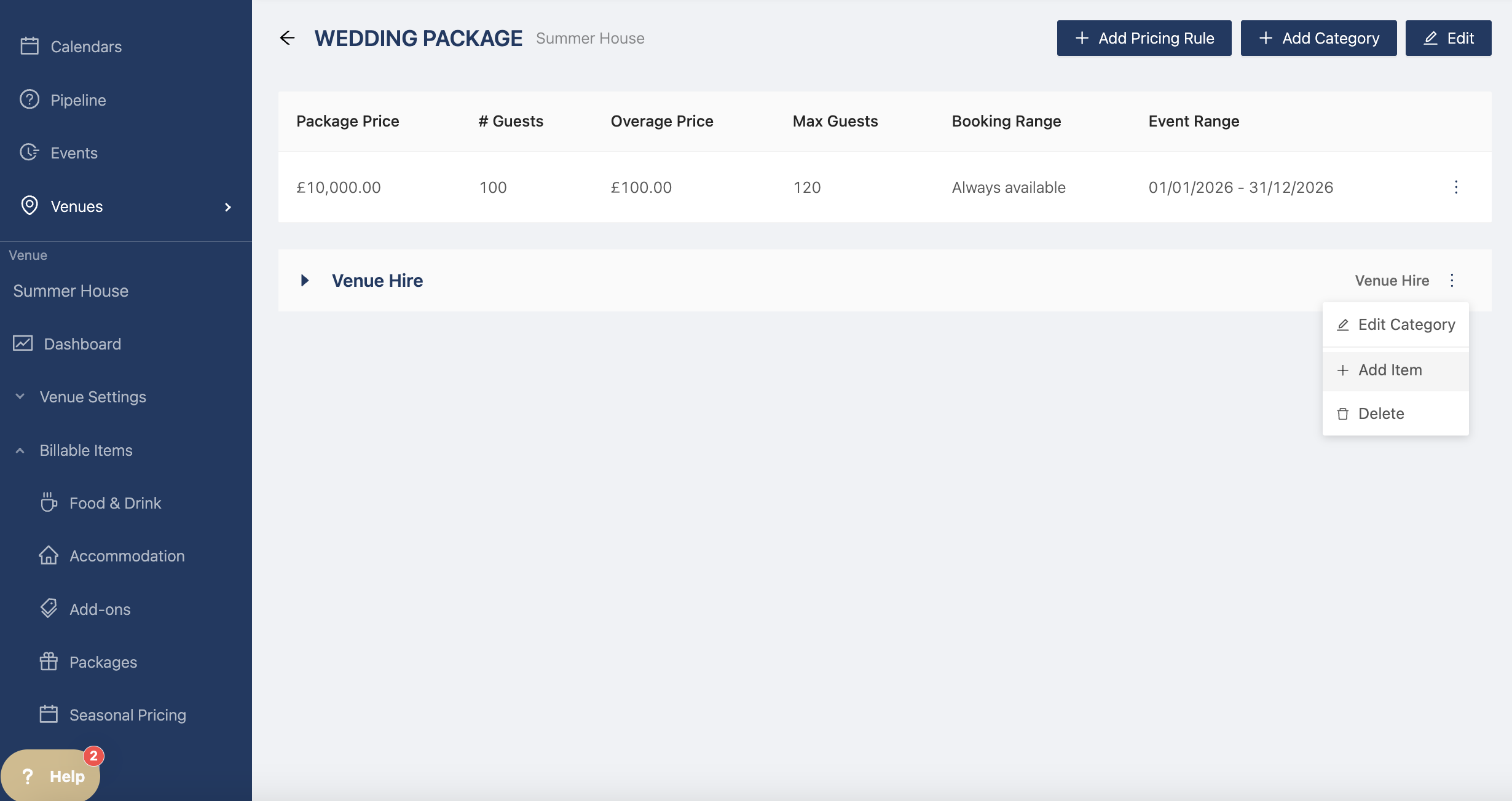
For Venue Hire and Additional Items, there are no venue set items and you have to create your own item like so
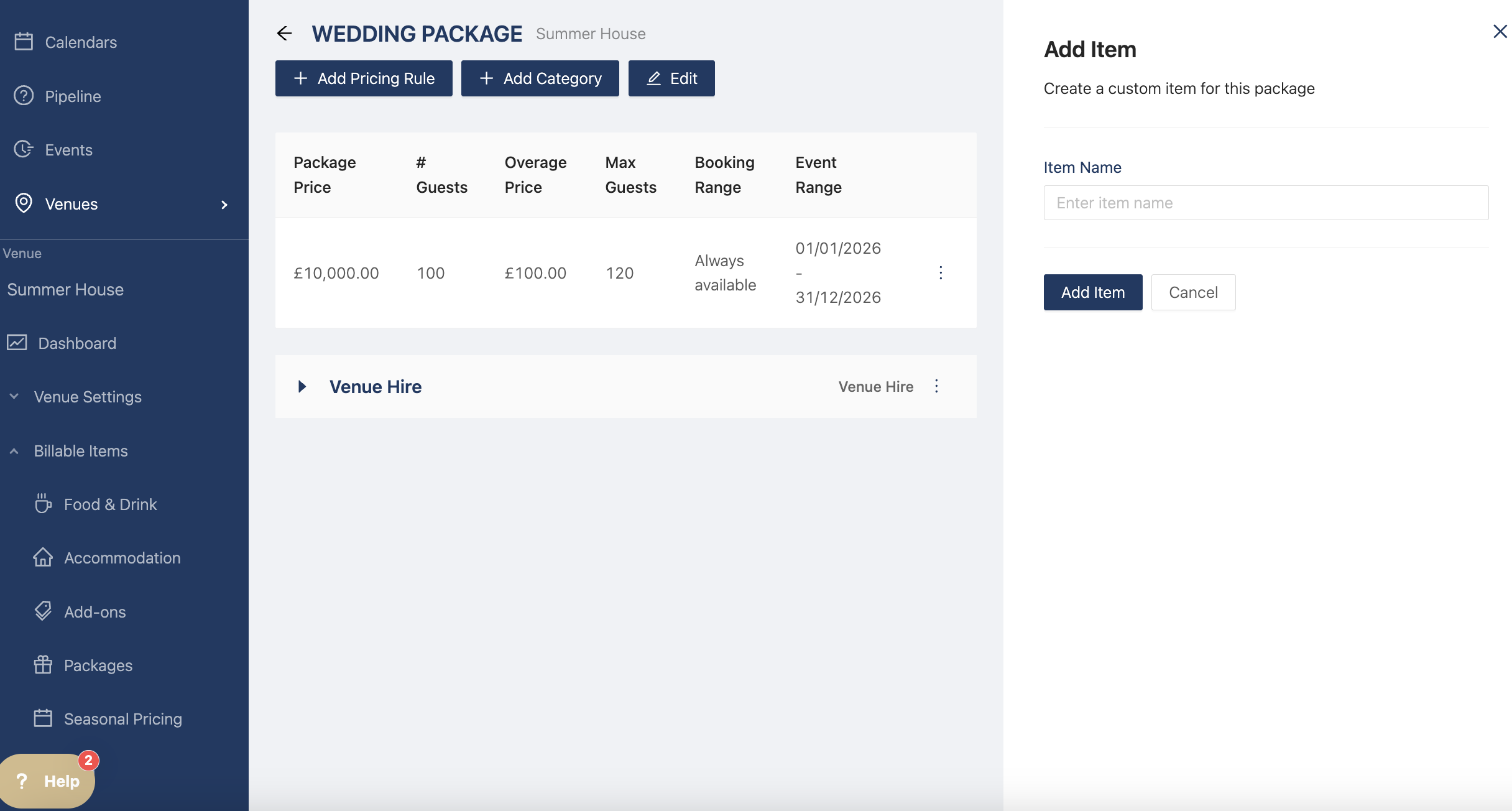
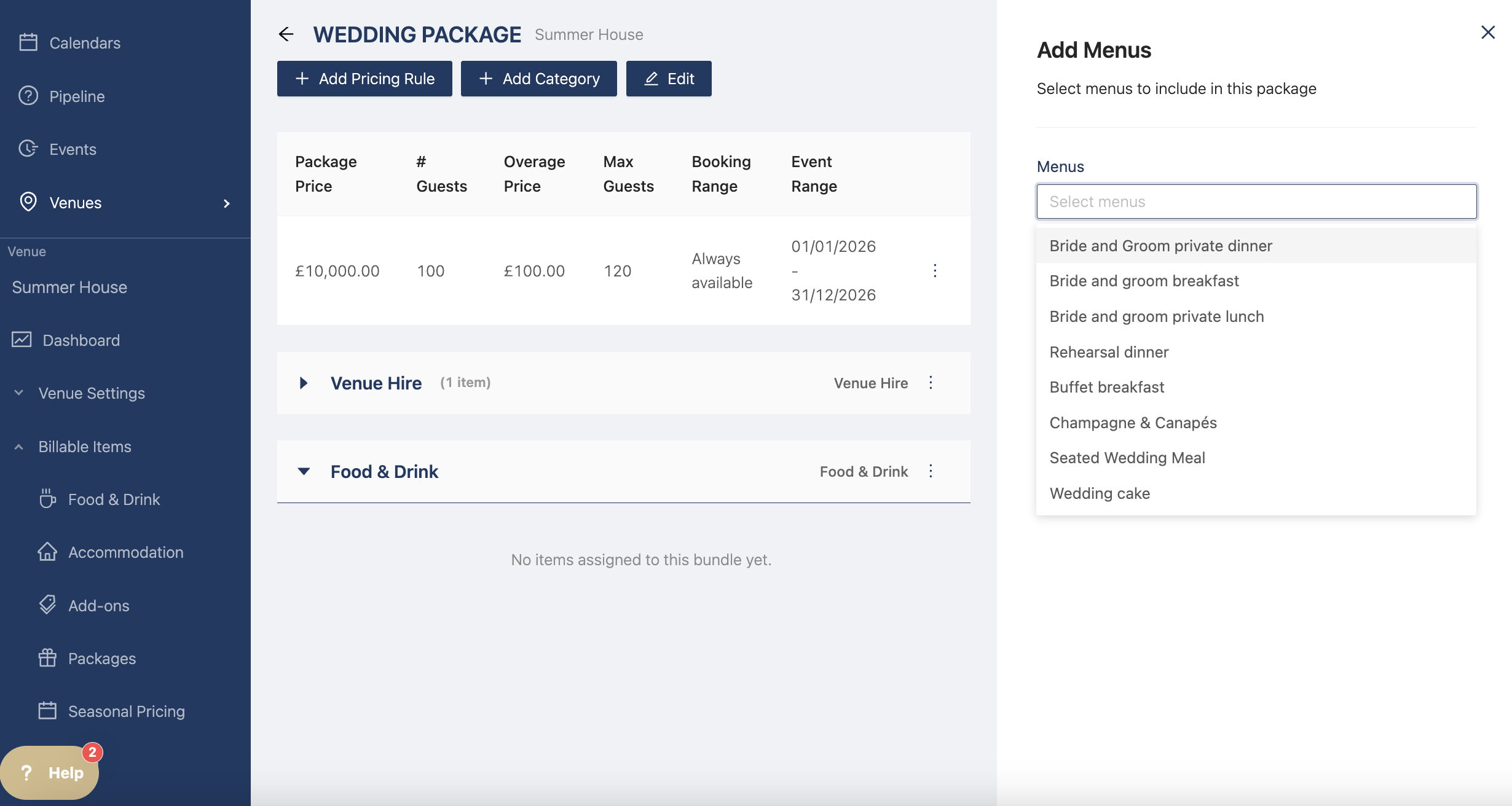
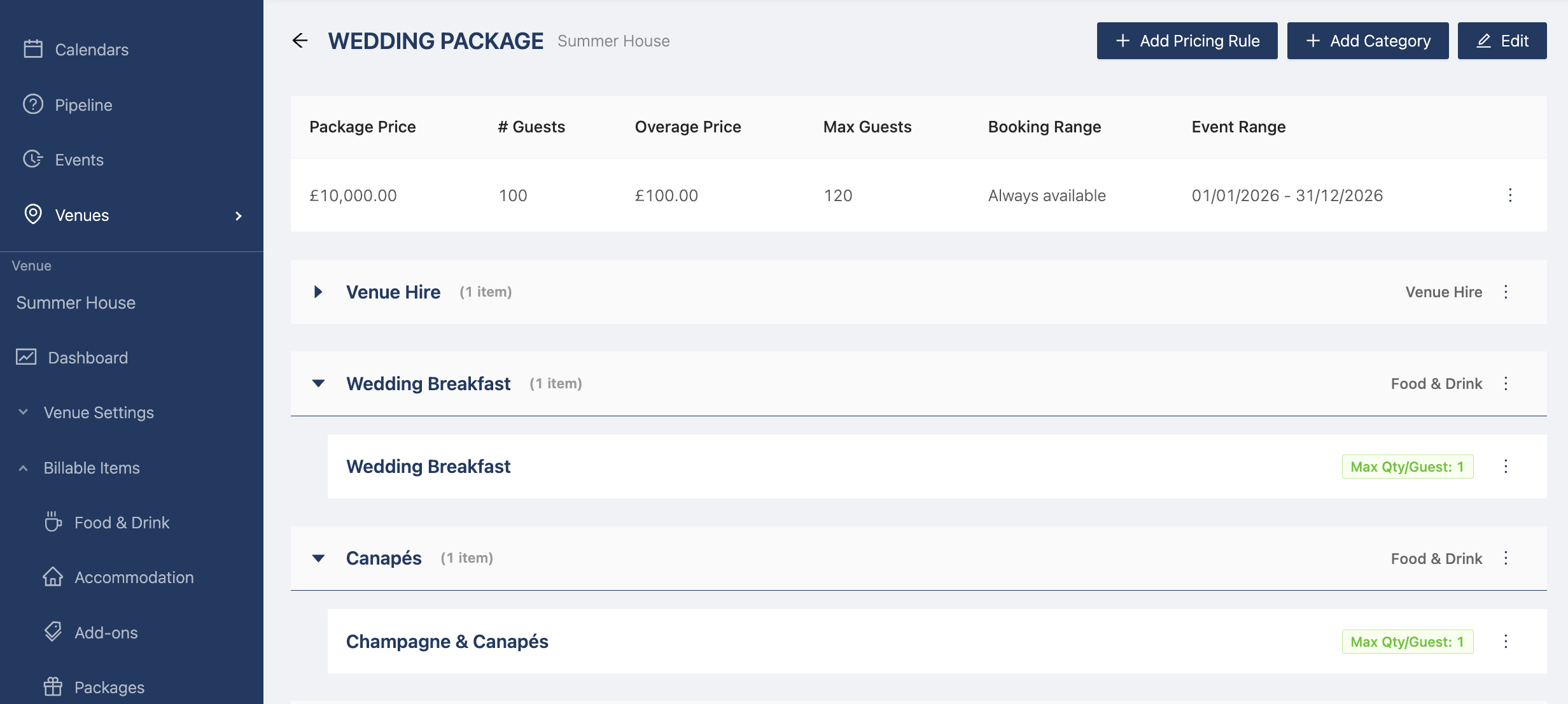
For Food & Drink, remember to create different categories if you want to apply them to different itinerary items. For example, you can create a Wedding Breakfast category and a Canapés category to apply them to their respective itinerary items.
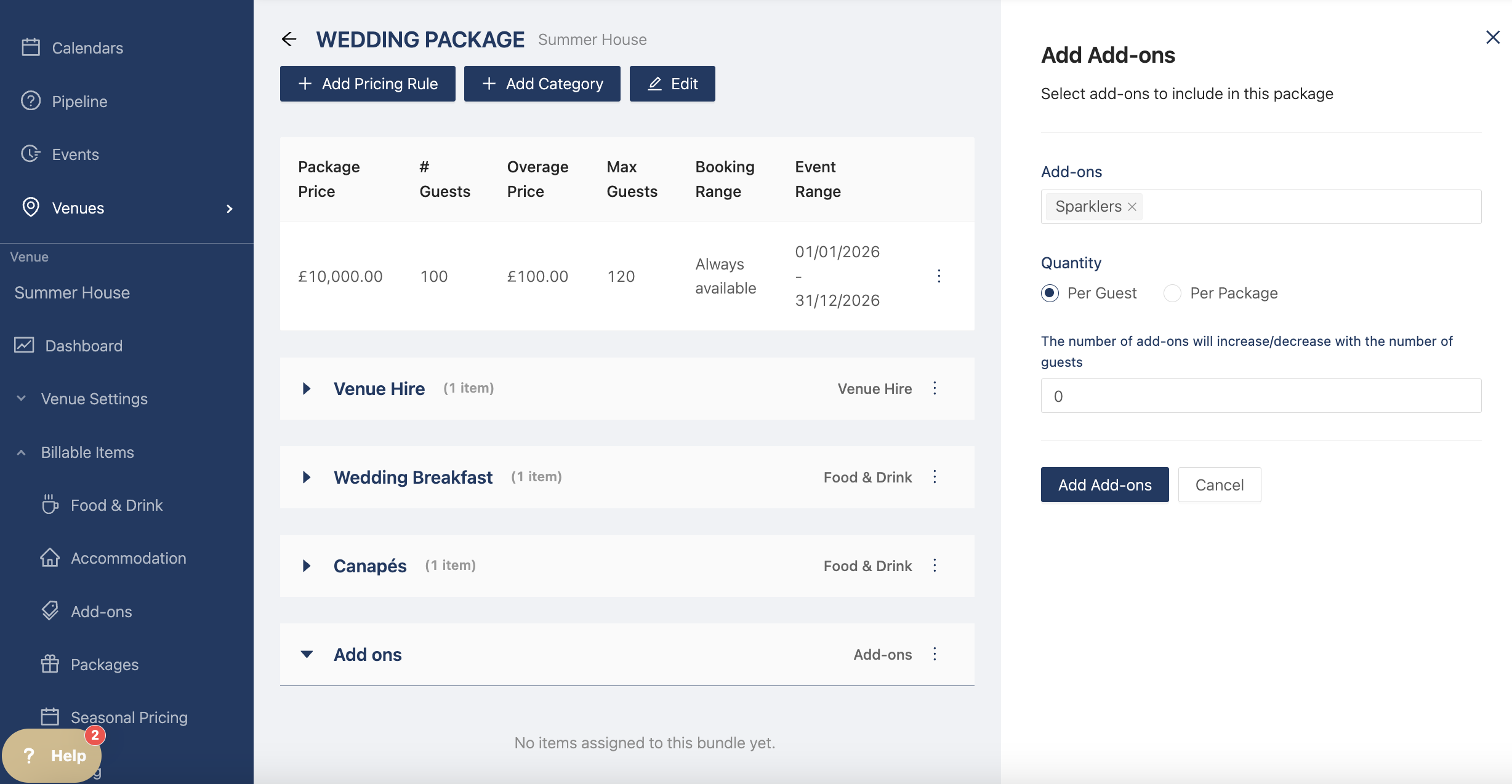
For Add ons, you can specify how many items are included in the package. For example, you can include 1 sparkler per guest but for the fairy lights there is 1 for the whole package.
Add of all the items you include in your package and you're ready to add it to events!