
How to view an event as a Host
You can now view an event from the Host side. This feature enables to view Hosts portal and get a glimpse of what they are seeing on their portal.
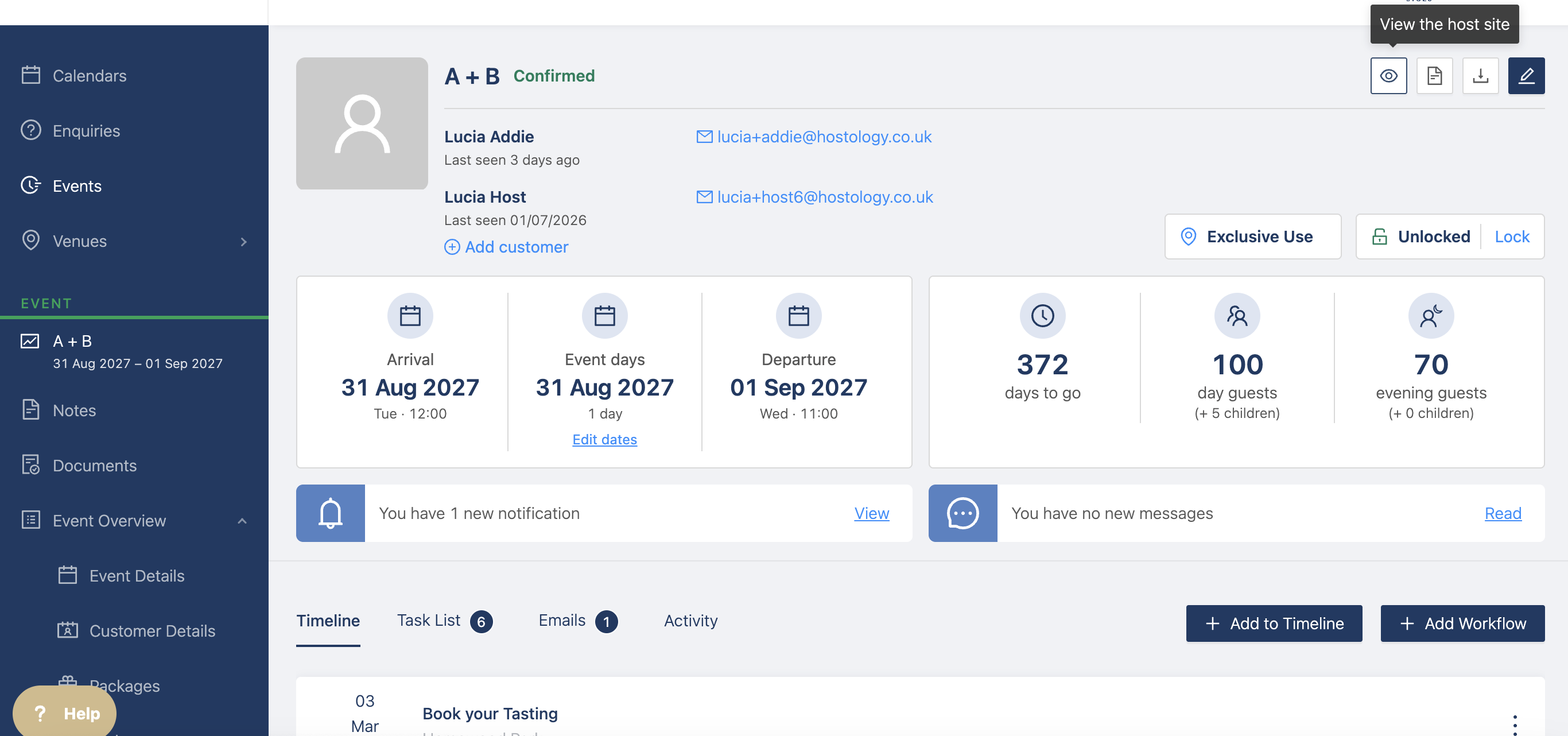
This can be done by simply clicking the "View as Host" button to check out
Clicking the button will open a new tab with the host portal, there are some things hidden from the venue side, for example tasks do not show as they are linked to the host account and some functionalities are limited and we recommend adding yourself as a Host if you want to view it fully.
How to add yourself as a Host
To add a yourself as a host to an event, simply go to the event dashboard and select "Add Customer" at the top of the page, beneath the event name:
This will take you to the event details page. Once here, select the "Add Customer" button in the top right of the page. This will then open a pop-up window for you to enter in your details of your host:
This will then prompt you to fill out the following information:
- First & Last Name
- Email Address
- Role
- Contact Number
- Address
You only need to add the First, Last Name, and email address to invite yourself to the platform, we would suggest calling it "Venue Support" and add your venue email address (eg. weddings@yourvenue.com)
Add in these details and then once you are ready you will have the following two options:
- Save
- Save & Send Invite
As you already have an account with Hostology when you click "save" it will say "joined" in green like below.