Create and Send Contracts
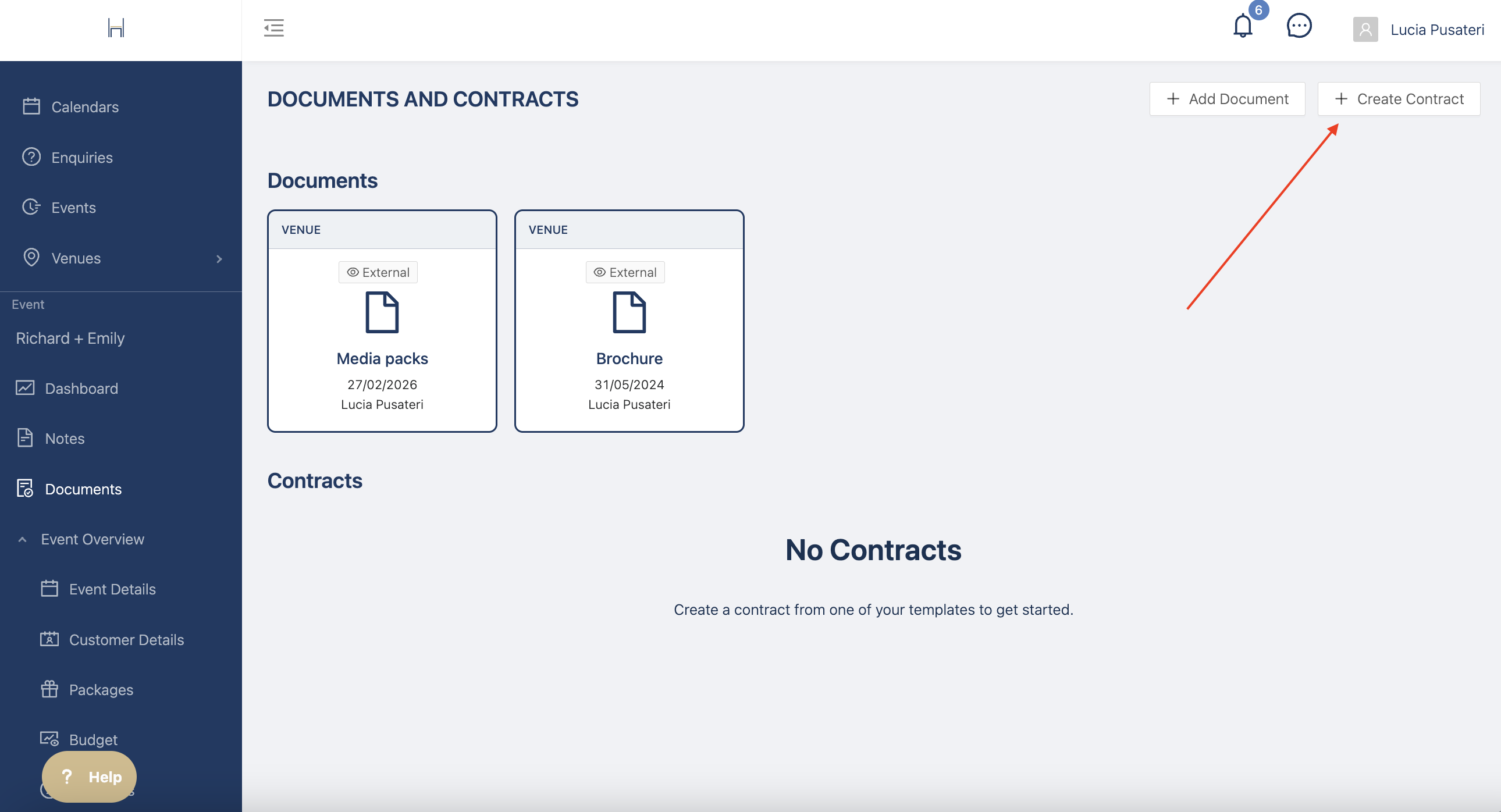
Head to an event you want to create a contract for and go to Documents. Click on Create Contract to get started
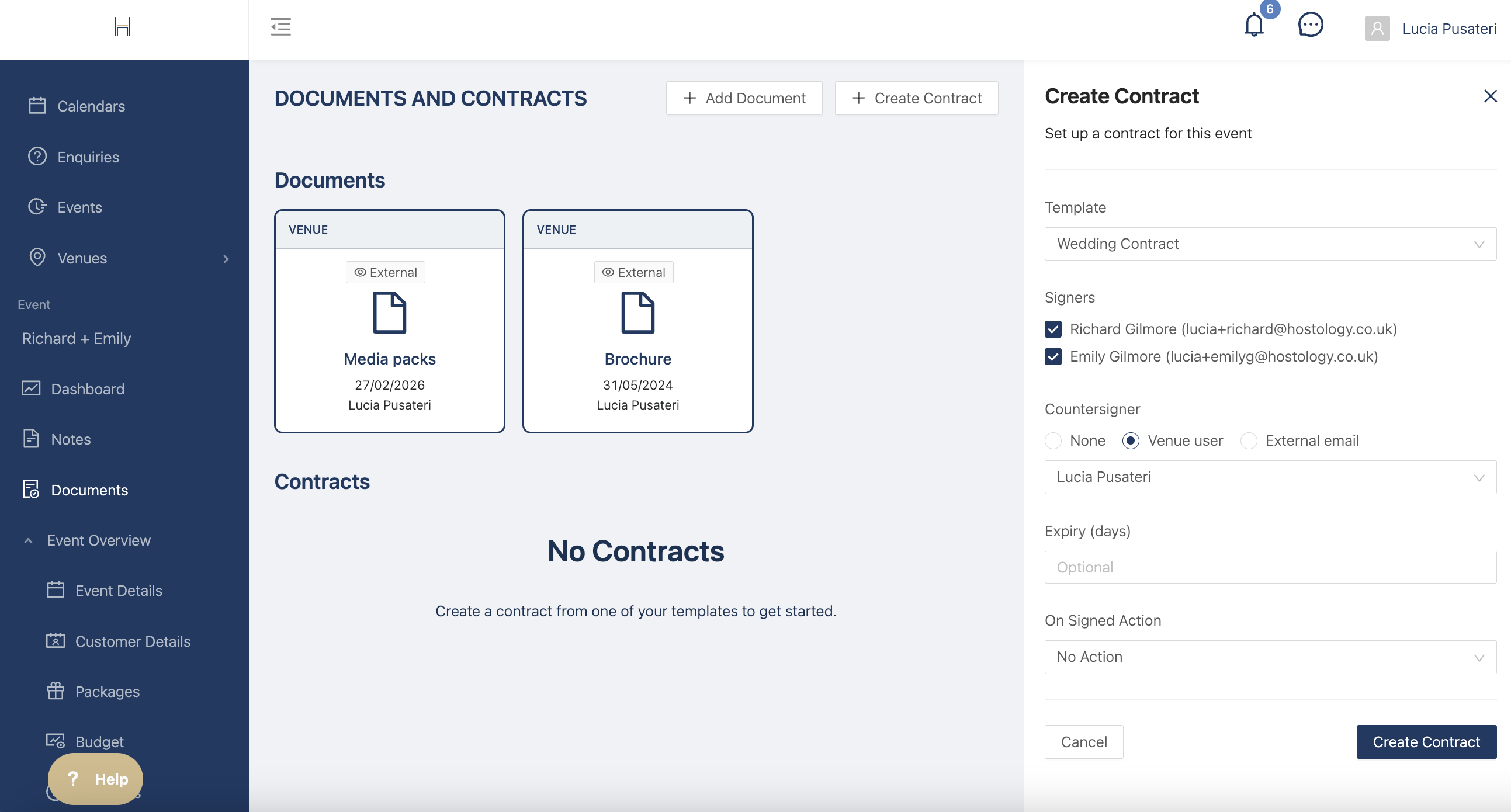
Select which template you want to use and which users need to sign it. They will receive the contract via email so make sure you've added their email in Customer Details.
If someone in your team needs to countersign, you can select the user directly or use an external email. Then click create contract.
You will now get a preview of the contract, ready to be edited and personalised with for example, specific payment dates etc.
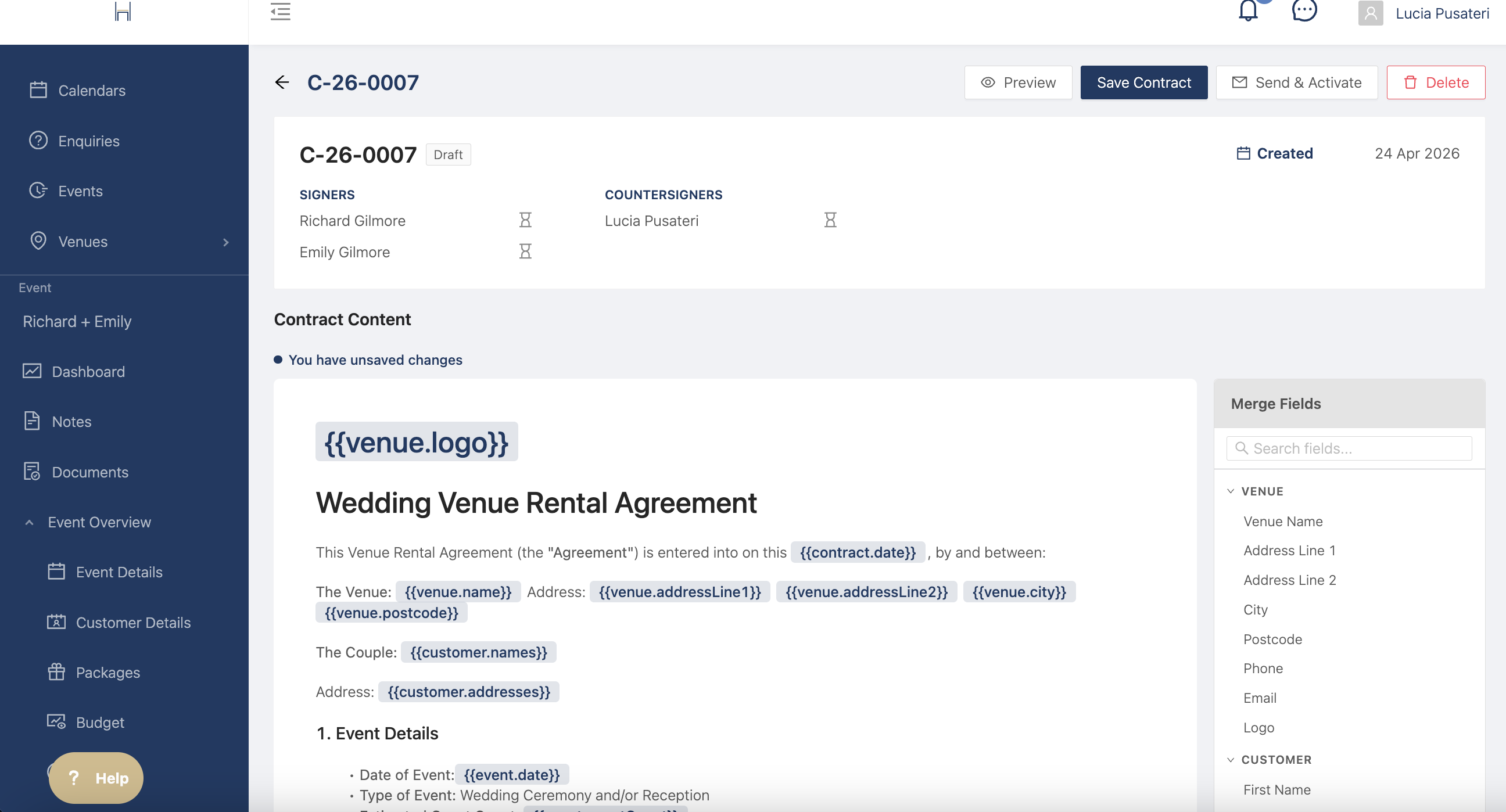
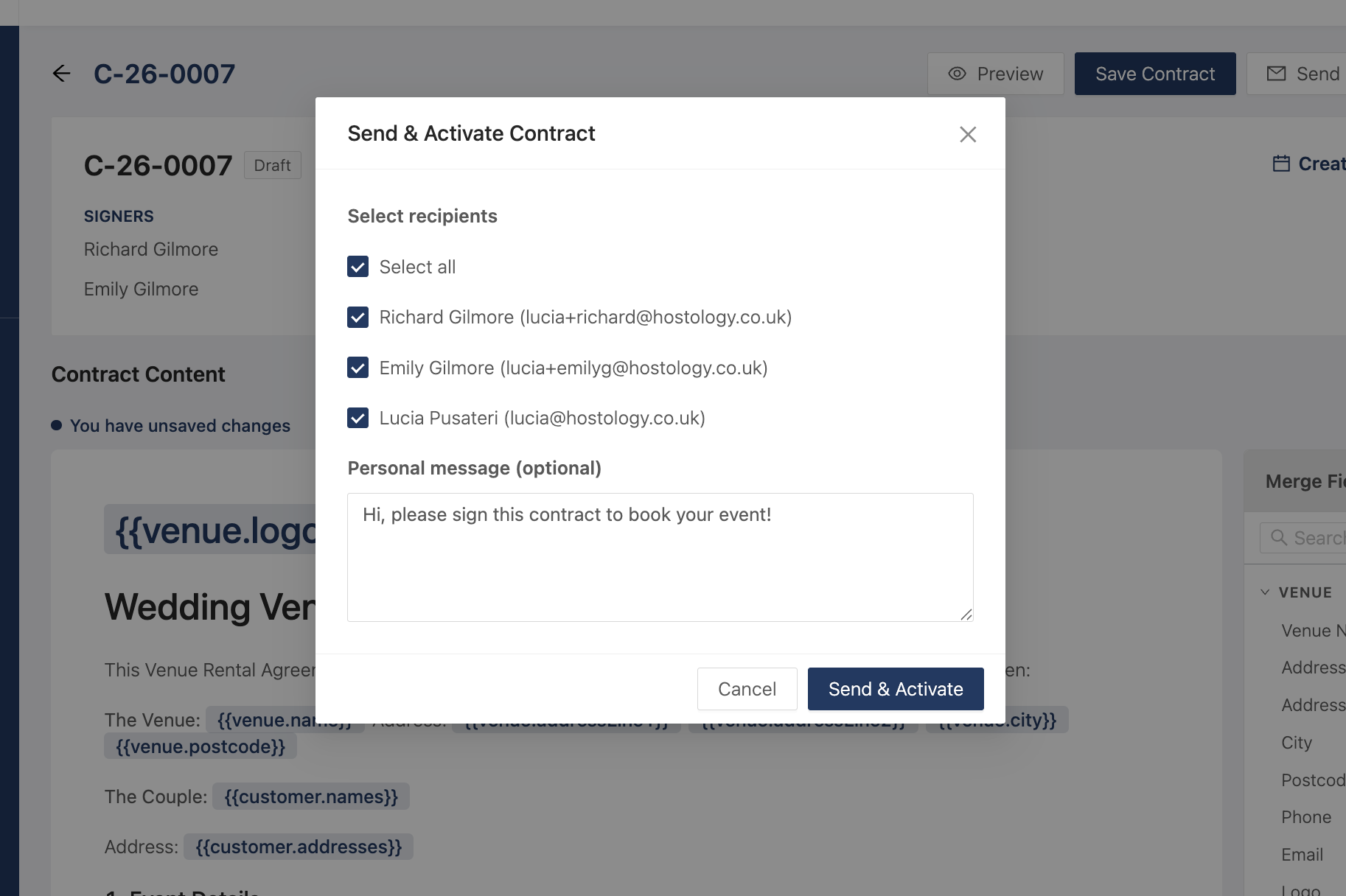
When you're ready to share the contract with your customers , click on "Send & Activate". You can even add a personal message that will be added to the email.
N.B. Once a contract is activated, it can no longer be edited.
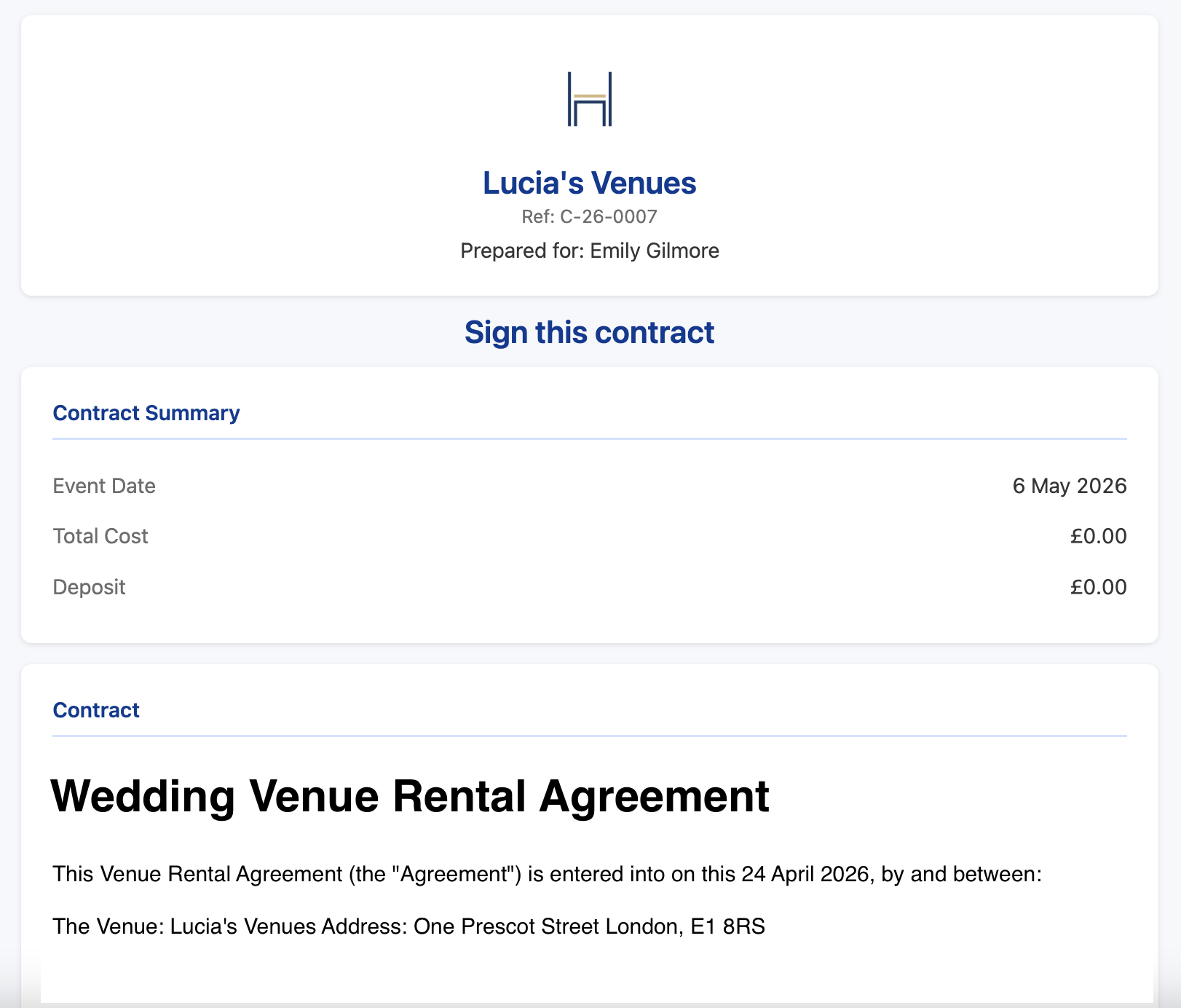
All the recipients will receive an email to sign the contract via link. Each link is unique to track the user that's signing the contract.
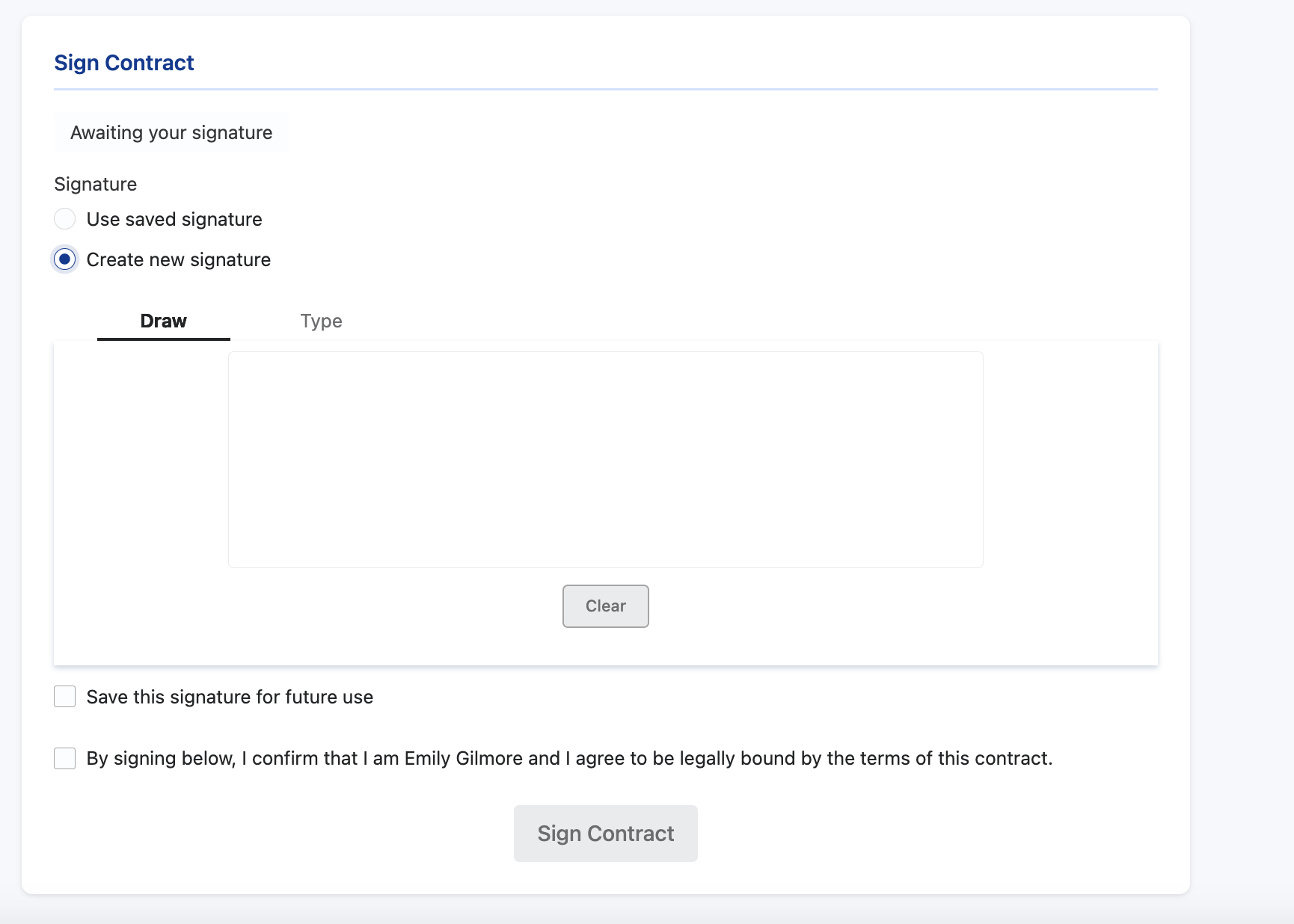
Signers can either draw their name or type it in to sign. You can also save your signature to apply it to other events.
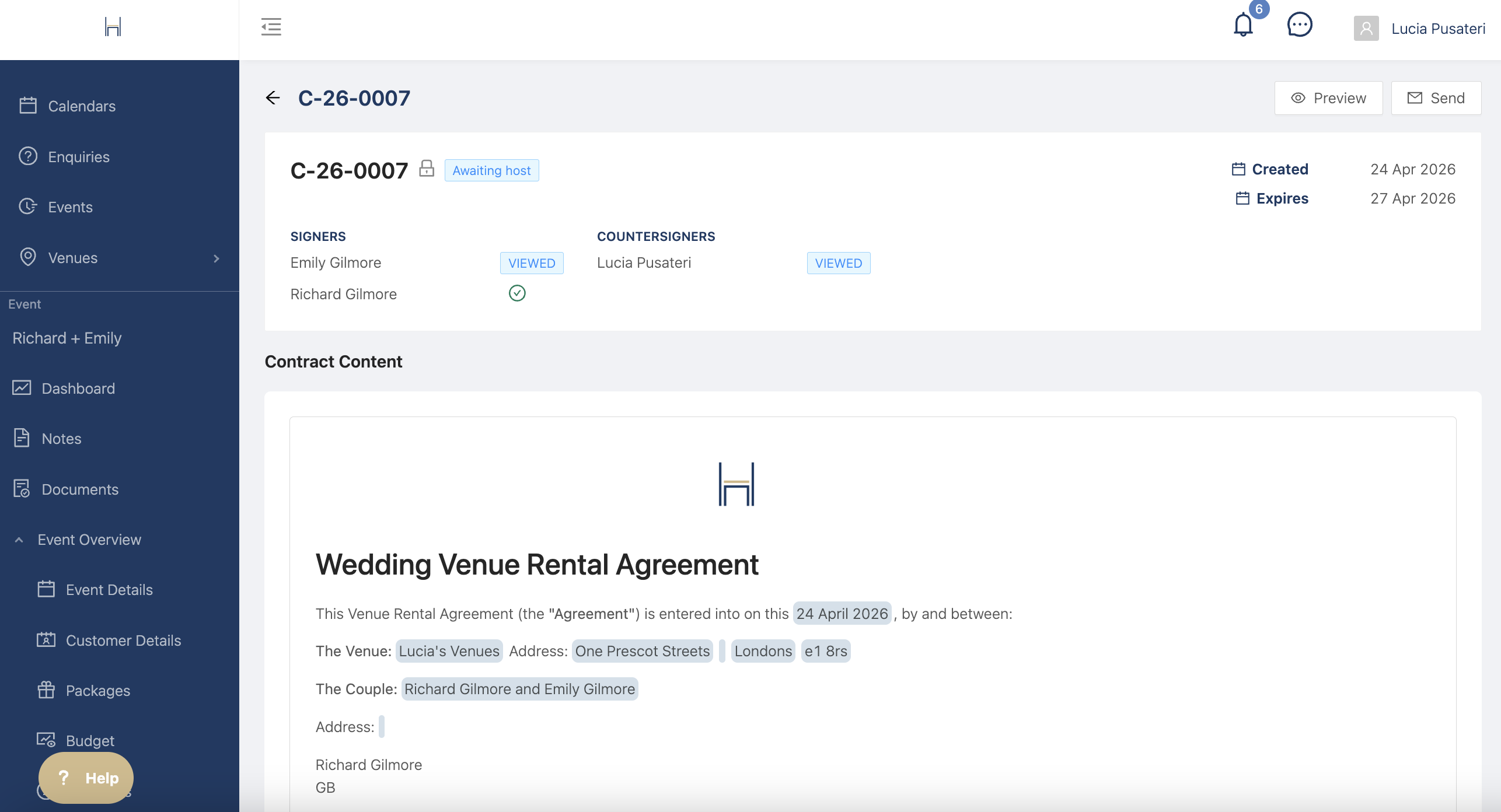
You can track whether the contract has been viewed and signed by simply clicking into the contract.
Once it's been signed by all parties they will all receive a PDF copy via email as well as the copy on the platform.